Figuring out the best IPTV player for Windows really comes down to what you need. For most people who want something simple, powerful, and clean, Free IPTV Player is our go-to recommendation. This guide will walk you through the top options to help you land on the right software for your streaming setup.
Jumping into the world of IPTV on your Windows PC might feel a little overwhelming at first, but it really just boils down to finding a player that fits your technical skills and wish list. And with the IPTV market growing like crazy, the demand for solid software is higher than ever.
In fact, the global IPTV market hit a massive $187.01 billion valuation in 2025, a big leap from $160.44 billion just the year before. This explosion in popularity means we need powerful Windows players that can handle stable, high-def streams without breaking a sweat. You can dig deeper into these IPTV market trends to see just how fast things are moving.
Of course, great software needs good hardware to back it up. Pairing your player with a high-quality streaming device from Amazon can make a world of difference in stability and picture quality, especially if you're streaming in 4K.
Before we get into the nitty-gritty, let's start with a high-level look at the leading IPTV players. This table is designed to give you a quick comparison of the essentials, helping you make a fast choice based on what's most important to you.
A high-level overview of the leading IPTV players, comparing essential features to help you make a fast, informed decision.
| Player Name | Setup Complexity | EPG Integration | Unique Feature | Ideal User |
|---|---|---|---|---|
| Free IPTV Player | Low | Seamless & Automatic | Browser-based; no install needed | Users wanting instant, easy access |
| VLC Media Player | Medium | Manual (No native UI) | Plays virtually any media file | Tech-savvy users needing versatility |
| Kodi | High | Add-on required | Fully customizable media center | Hobbyists building a home theater PC |
| MyIPTV Player | Medium | Built-in & smooth | Clean, TV-like interface | Users looking for a classic EPG feel |
This quick rundown should give you a starting point. Now, let's break down what those differences mean in the real world.
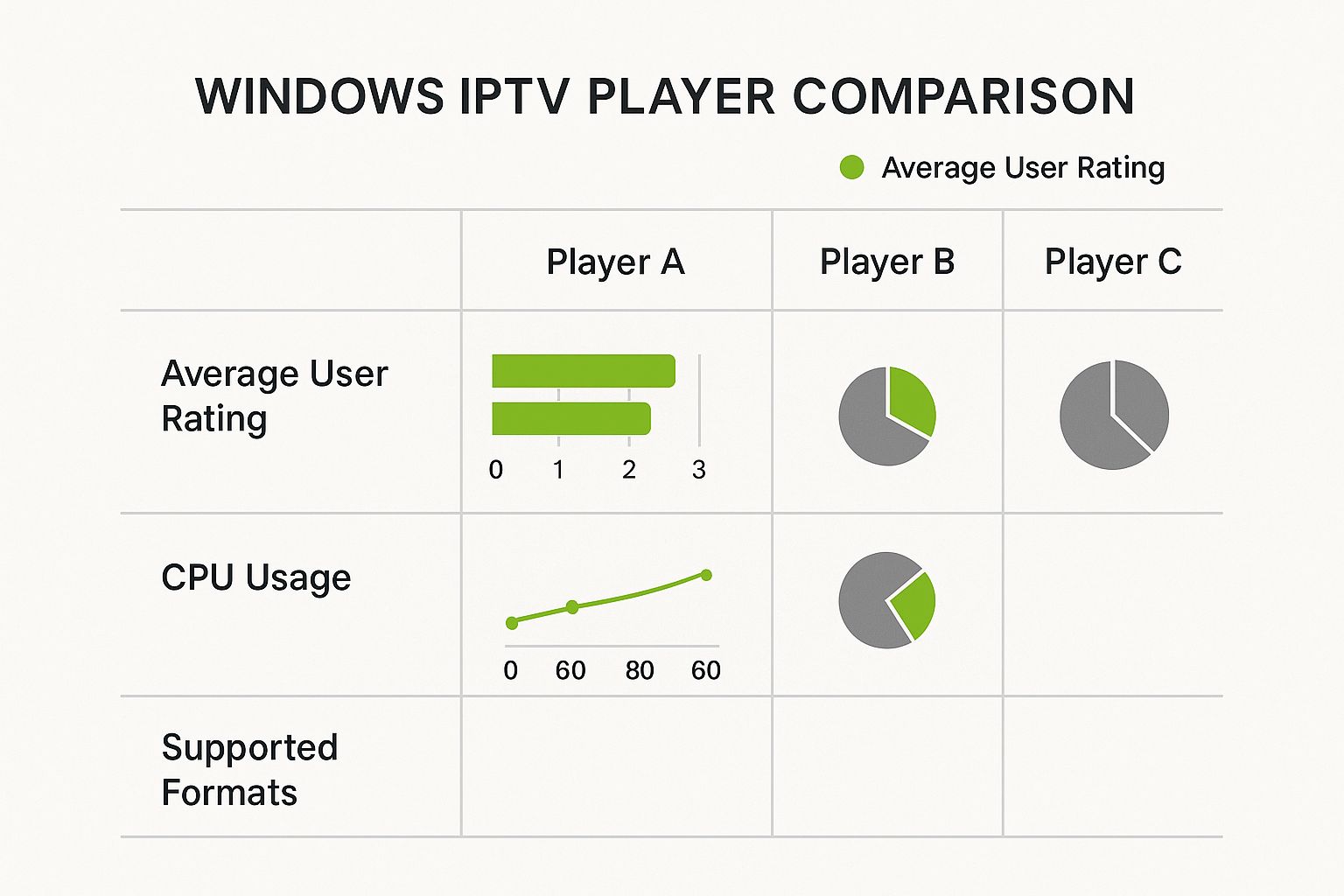
As you can see from the performance metrics, there's always a trade-off. Some players can handle every format under the sun but might hog your CPU, which isn't great for older PCs. This is why lighter-weight options often win out for everyday use.
And remember, no matter which player you choose, the quality of your stream depends heavily on your provider. Using a reliable service like IPTV Now is just as important as the software you run it on.
Before we pit the top IPTV players against each other, let's talk about what actually makes one worth your time. It’s easy to think they’re all the same, but the difference between a great player and a mediocre one can make or break your streaming experience. Getting this right is about understanding a few key elements that separate the best from the rest.
The absolute ground floor for any decent IPTV player is its ability to handle different playlist formats. At a minimum, it needs to flawlessly load M3U and M3U8 files. Think of these as the digital menus that point your player to the right channels. If it can't read the menu, you're not eating.
Your M3U file is the heart of your entire setup. It's a simple text file that lists all your channels and contains the direct links to their live streams. A solid player doesn't just open these files; it manages them gracefully, even if you throw a massive list with thousands of channels at it.
Here’s a peek at what the raw data in an M3U playlist looks like.
As you can see, it’s a structured list with channel names, metadata, and the URLs for the streams. It's the basic instruction set for your player. If you're curious and want to get into the weeds, you can learn more by mastering the M3U experience in our deep-dive guide.
But let’s be real—a raw list of channels feels pretty archaic. That’s where the Electronic Program Guide (EPG) steps in to modernize things.
An EPG takes that basic channel list and turns it into the familiar grid-style guide you’d see on a traditional TV. It shows you what’s playing now and what’s scheduled next. For any player to be considered a top contender for Windows, smooth EPG integration is absolutely non-negotiable.
Without a good EPG, you’re stuck blindly clicking through channels, hoping to find something good. A truly great player will fetch, sync, and display EPG data in a clean, intuitive layout, making channel surfing a breeze.
Once compatibility is sorted, it all comes down to performance. You want a player that sips resources, not gulps them. Minimal buffering and low CPU usage are critical for a smooth stream that doesn’t turn your PC’s fan into a jet engine, especially if you're not running the latest hardware.
Finally, the user interface (UI) is what pulls it all together. A clunky, confusing interface can ruin even the most powerful player. Here’s what I look for in a good UI:
When it comes down to it, the best IPTV player is a perfect mix of wide-ranging compatibility, buttery-smooth performance, and a user-friendly design. With these criteria in mind, let's dive into how the leading players stack up.
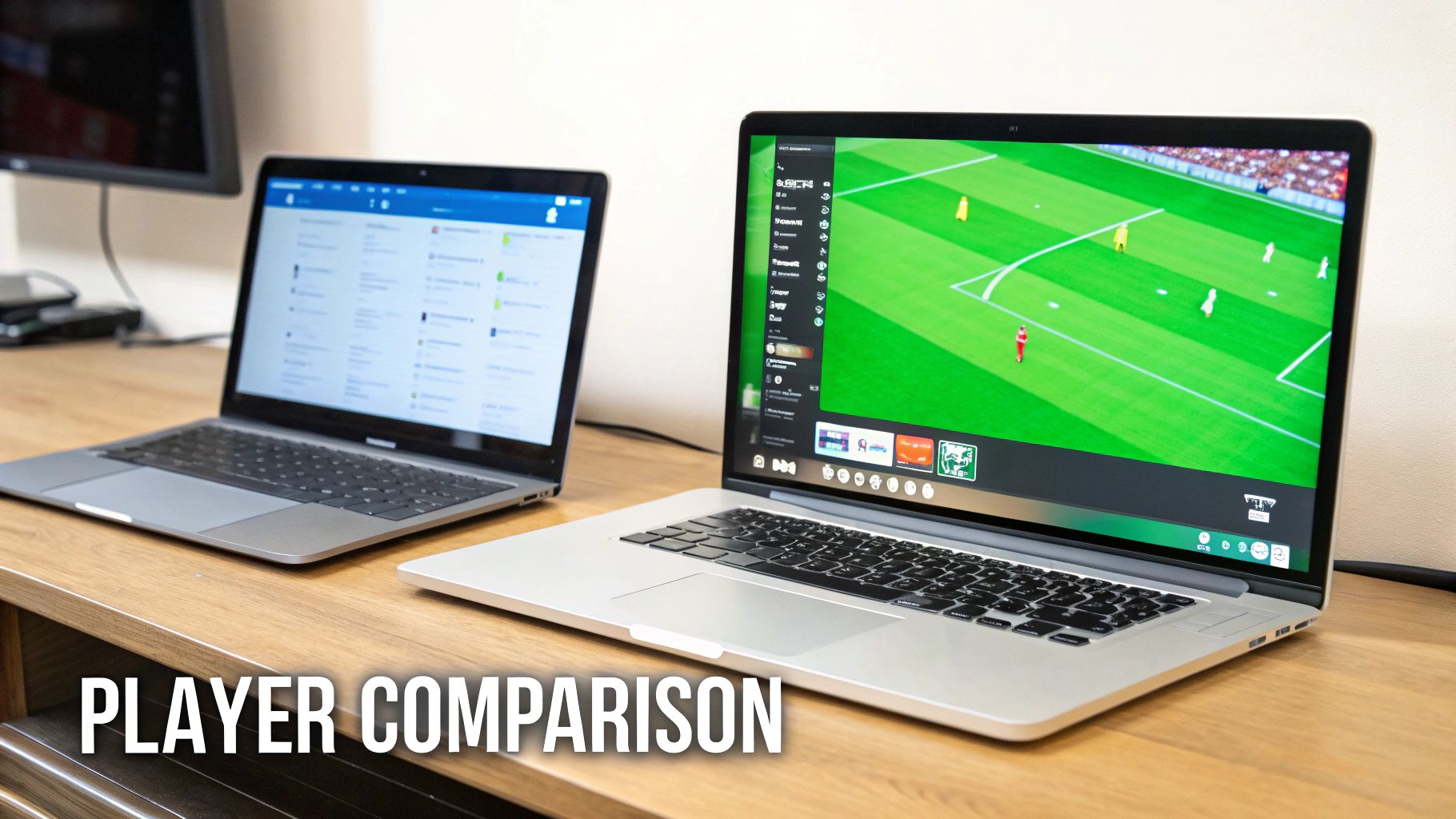
Picking the right player is about more than just checking off features on a list. It’s about how each one actually feels and performs when you're settling in to watch your favorite content. The best IPTV player for Windows isn't just about what it can do, but how seamlessly it fits into your daily routine. Let's do a real-world, side-by-side comparison of the top contenders: VLC, MyIPTV Player, Kodi, and our personal favorite, Free IPTV Player.
The demand for good software is no surprise when you see the numbers. The North American IPTV market hit a value of around $68.78 billion in 2023 and shows no signs of slowing down. A big chunk of that is hardware, like IPTV-ready devices, which just goes to show how much people need powerful Windows players that don't lag or crash. A powerful mini PC from Amazon can serve as a dedicated streaming hub for your entire home.
When you start looking at IPTV players for Windows, you’ll hear the name VLC Media Player pop up almost immediately. It’s the trusty Swiss Army knife of media players, loved for being open-source and able to play just about anything. If all you want to do is load a single M3U playlist and watch a channel, VLC is lightweight, dependable, and gets the job done.
But its simplicity is also its biggest weakness for IPTV. If you're looking for an experience that feels like traditional TV, VLC falls short. There’s no built-in Electronic Program Guide (EPG), which means you're stuck scrolling through a long, boring text file of channels. It makes channel surfing feel clunky and turns a simple task into a real chore.
For anyone who misses a good program guide, MyIPTV Player is a huge leap forward. You can grab it from the Microsoft Store, and it delivers a clean, grid-style EPG that feels just like using an old cable box. This makes finding new shows and figuring out what to watch next so much more intuitive.
The trade-off? The setup can feel a bit technical for newcomers. You have to navigate through a few different menus to add your M3U and EPG links, which might put off anyone looking for a simple plug-and-play solution. Performance-wise it’s solid, but it’s still a dedicated app you have to install and configure.
Then there’s Kodi, which is really in a league of its own. It's not just a player—it's a full-blown media center. For the tech-savvy user who loves to tinker, Kodi is a dream. With the right add-ons, you can build a completely personalized IPTV setup with beautiful skins, integrated media libraries, and incredibly detailed EPG data.
But Kodi's greatest strength is also its biggest barrier. The setup is notoriously complex. You have to hunt down and install specific add-ons, then spend time configuring everything just right. It’s an amazing tool if you're willing to put in the hours, but it's complete overkill for someone who just wants to click a link and start watching TV.
This is where Free IPTV Player really shines by neatly solving the problems the others create. It finds the perfect sweet spot between powerful features and dead-simple usability. Since it runs entirely in your web browser, there is zero installation required. You just copy and paste your M3U link, and you're streaming instantly. It doesn't get any easier than that.
It gives you a clean, easy-to-use EPG without the headache of setting up MyIPTV Player or Kodi, making it a fantastic choice for both beginners and IPTV veterans. And while a Windows PC is great, most of us want to watch on our phones, too. You can check out our guide on finding a great IPTV player for Android to get all your devices covered.
After sizing up all the options, one player clearly stands out from the pack: Free IPTV Player. It’s our top pick because it solves the biggest headaches that trip up users of other apps—we’re talking clunky interfaces, confusing setups, and mandatory software installs. This player was built from the ground up for simplicity and getting you to your content, fast.
The magic is in its browser-based design. You don't have to download or install a single thing. That immediately wipes out any worries about compatibility, your PC slowing down, or security risks from sketchy apps. You just open the website, pop in your M3U playlist link, and start watching. It's a no-brainer for any Windows user who just wants to stream without the fuss.
Let’s be honest, a lot of IPTV players, even the really powerful ones, can feel like you need an engineering degree to operate them. Too often, you spend more time fiddling with settings and trying to get your EPG to work than actually enjoying your channels. Free IPTV Player skips all that drama.
The whole experience is clean, simple, and built for action. There’s no digging through confusing menus to add a playlist or find your channels. If you’ve ever felt overwhelmed by Kodi or found VLC a bit too bare-bones for a real TV feel, this is the solution you’ve been looking for.
One of the most common frustrations with desktop IPTV apps is wrestling with the Electronic Program Guide (EPG). Getting it to sync up correctly can be a real pain. Free IPTV Player handles this for you, automatically pulling in all the program data and organizing it into a clean, easy-to-use TV guide. No manual effort required.
It's this "it just works" philosophy that really sets it apart. The player is designed to solve problems, not create new ones, making it a reliable choice for IPTV beginners and old pros alike.
Because it runs right in your browser, it’s also incredibly light on your system. It uses modern web tech to keep buffering to a minimum and deliver smooth playback without hogging your PC’s CPU or RAM. That’s a huge plus if you’re on a laptop or an older computer that can’t handle a heavy media center program. For the best viewing experience, a high-resolution 4K monitor from Amazon will truly make your streams pop.
Ready to give it a try? You can check out our guide on how to create an M3U playlist and be up and running in just a few minutes.
Ultimately, Free IPTV Player strikes the perfect balance. You get the powerful features of a dedicated app, like a slick EPG and smooth streaming, combined with the pure simplicity of a web tool. For most Windows users, it’s the straightest line to hassle-free, high-quality IPTV.
Picking the right IPTV player for Windows is a huge first step, but even the best software is going to stumble on a PC that isn't ready for it. If you want that truly seamless, buffer-free stream, you need to make sure your computer is running in top form. Think of it like this: your PC is the engine, and the player is the driver—they have to work together perfectly.
Getting your PC optimized just takes a few simple, but really effective, tweaks. The main idea is to free up as much of your computer's power as possible for the IPTV stream. This helps you dodge all those annoying issues like stuttering, freezing, or just plain bad video quality.
First thing's first: take a look at what's running in the background. Things like cloud syncing services or automatic software updaters can quietly eat up a ton of your bandwidth and processing power. Before you settle in to watch something, just take a second to close out any apps you don't absolutely need.
Next up, check out your PC's power settings. By default, Windows usually sits on a "Balanced" plan to save a little energy, but that can actually slow down your CPU and network adapter. Switching it over to the "High Performance" plan gives your hardware all the juice it needs to handle HD streams without a hiccup.
A stable network is the absolute foundation of good IPTV. While Wi-Fi is convenient, a wired Ethernet connection provides a faster, more reliable signal, dramatically reducing the chances of buffering caused by wireless interference.
If your PC still isn't giving you the smooth stream you're looking for, a few small hardware investments can make a world of difference. These are affordable little upgrades that tackle the most common network problems head-on.
These kinds of optimizations are only getting more important. The global IPTV market is expected to more than double, jumping from $50.9 billion in 2021 to an estimated $115.2 billion by 2026. A big driver for that growth is network improvements like 5G, which demand that our hardware is up to the task.
For a deeper dive, check out our guide on how to get your connection stream-ready at https://freeiptvplayer.net/how-to-optimize-internet-connection/. And don't forget, a secure PC is a fast PC; malware can absolutely kill your performance. Keeping your system clean with comprehensive cybersecurity measures is a critical part of the puzzle.
Diving into the world of IPTV on your PC can feel a little confusing at first. It's totally normal to have a few questions pop up. This last section is all about clearing up those common sticking points so you can find the best IPTV player for Windows and get streaming with confidence. Getting these basics down will make your whole experience much smoother.
One of the first things people get tripped up on is the difference between the software itself and the actual channels. It's a key distinction, so let's break it down.
An IPTV player is just a piece of software—like Free IPTV Player or VLC—that knows how to read and play IPTV streams. Think of it like a Blu-ray player; it's the machine that plays the movie, but it doesn't come with any movies included.
On the flip side, an IPTV service is the company you subscribe to that gives you the content—all the live channels and on-demand shows. To watch anything, you need both: a service to give you an M3U playlist and a player to run it.
For a top-shelf experience, you absolutely need a solid service like IPTV Now. Even the best player in the world can't fix a choppy, unreliable stream from a bad provider.
This is a big one, and the answer is simple: yes. Using an IPTV player itself is perfectly legal. These are just media players, plain and simple. They're tools built to play video, and you can find them in official app stores.
Where things get tricky is with the content source, not the player. It’s on you, the user, to make sure your IPTV provider has the right licenses to broadcast the channels they’re selling. Always stick with legitimate and reputable IPTV services.
While the buttons might have slightly different names, adding an M3U playlist is pretty much the same across the board. This universal process is exactly why the M3U format is the standard.
Here’s the usual drill:
Pro tip: If your laptop doesn't have an ethernet port, consider grabbing a quality Ethernet adapter from Amazon. A wired connection is always more stable, especially for those beautiful 4K streams.
Ready to try the easiest, most direct way to watch IPTV on your Windows PC? With Free IPTV Player, there’s no software to download and no setup to mess with. Just paste your M3U link right into your browser and start streaming.