Think of creating an M3U playlist as making a simple map for your media player. This file doesn't actually hold any of the movies or shows. Instead, it's just a text file with a list of addresses (URLs or file paths) that tells your player exactly where to find the content you want to watch.

Before you start building your own, it helps to get what an M3U file really does. At its core, it's just a plain text file that lines up your media streams or local files in a specific order for playback. Its simplicity is its biggest advantage, making it a universal standard for media players everywhere, including our own Free IPTV Player.
If you're curious about the tech that makes this all possible, you can dive deeper into our guide on what IPTV is and how it works.
The whole idea started back in the late 1990s with a program called WinPlay3. The name "M3U" originally stood for "MP3 URL" because it was designed to organize audio files. It caught on fast and quickly evolved. By December 2004, it had become the unofficial standard for playlists, all without any formal rulebook.
When you save your file, you'll run into two main types: .m3u and .m3u8. They might look almost the same, but the difference is pretty important.
.m3u8 is definitely the way to go.A simple list of links will get the job done, but the real magic happens with the "Extended M3U" format. You'll know you're using it if the file starts with the #EXTM3U header at the very top. This "extended" version lets you add extra information—or metadata—using special tags like #EXTINF.
An M3U playlist without metadata is like a book with no chapter titles. An extended playlist with
#EXTINFmetadata adds the necessary context, giving each entry a name, logo, and group, transforming a raw list into an organized, user-friendly channel guide.
This metadata is what turns a long, confusing list of URLs into a polished guide with channel names, logos, and even EPG (Electronic Program Guide) data right inside your player. It’s what makes the experience feel professional and easy to navigate.

Before you can start building that perfect M3U playlist, you need to get your ingredients together. Think of it like cooking – you need the right tools and the right ingredients. It’s a pretty simple process, whether you're corralling online streams or just getting your personal media library in order.
First things first, you'll need a good text editor. Sure, you could use the basic Notepad on Windows or TextEdit on a Mac, but trust me, a more specialized editor will save you a ton of headaches. They often come with features like syntax highlighting that make spotting a typo a breeze.
Having one of these on hand will give you a solid foundation for crafting your playlist file from the ground up.
Alright, now for the main course: the actual links to your content. If you're working with IPTV, these will be the stream URLs your provider gives you. It's super important to make sure these links are active and point directly to the stream.
If you're using local files from your computer, you'll be dealing with file paths instead. This is where a lot of people trip up, so let's clear it up.
Absolute vs. Relative Paths
An absolute path is the full, complete address from your computer's root directory (like C:UsersYourNameMusicsong.mp3). A relative path is the location based on where your M3U file is saved (like Musicsong.mp3). For playlists with local files, you should always try to use relative paths. It makes your playlist portable, so you won't get a bunch of broken links if you move the whole folder to another drive.
Once your links are gathered, you'll want a way to test them. While our Free IPTV Player is perfect for web streams, it’s always good to have a reliable local media player handy, too. More importantly, having a capable streaming device ensures your masterpiece of a playlist actually performs well when you kick back on the couch.
Sometimes, you might be creating a really specialized list, like for a karaoke night. In that case, you might even be prepping the media files yourself. For example, some folks want to learn how to remove vocals from a song to create their own custom instrumental tracks.
Now that your toolkit is ready and your links are in hand, you're all set to start building.
Alright, let's get our hands dirty and build your first M3U playlist from scratch. Don't worry, you won't need any fancy software for this. All it takes is a basic text editor—like Notepad on Windows or TextEdit on Mac—and the stream links you want to add.
The process is way simpler than it sounds. At its core, we're just creating a simple list that tells the player what to play and in what order.
First things first, every single extended M3U playlist has to start with one specific line: #EXTM3U.
Think of this as the file's ID card. It's the very first thing a player looks for, and it signals, "Hey, I'm an extended M3U playlist, and I've got extra channel information inside." If you forget this header, most modern players will just give up and won't even try to read your file.
With the header in place, you can start adding your channels or media files. An M3U playlist is really just a list where each entry is made up of two lines: one for the channel information and one for the actual stream link.
This simple breakdown shows how the workflow looks.
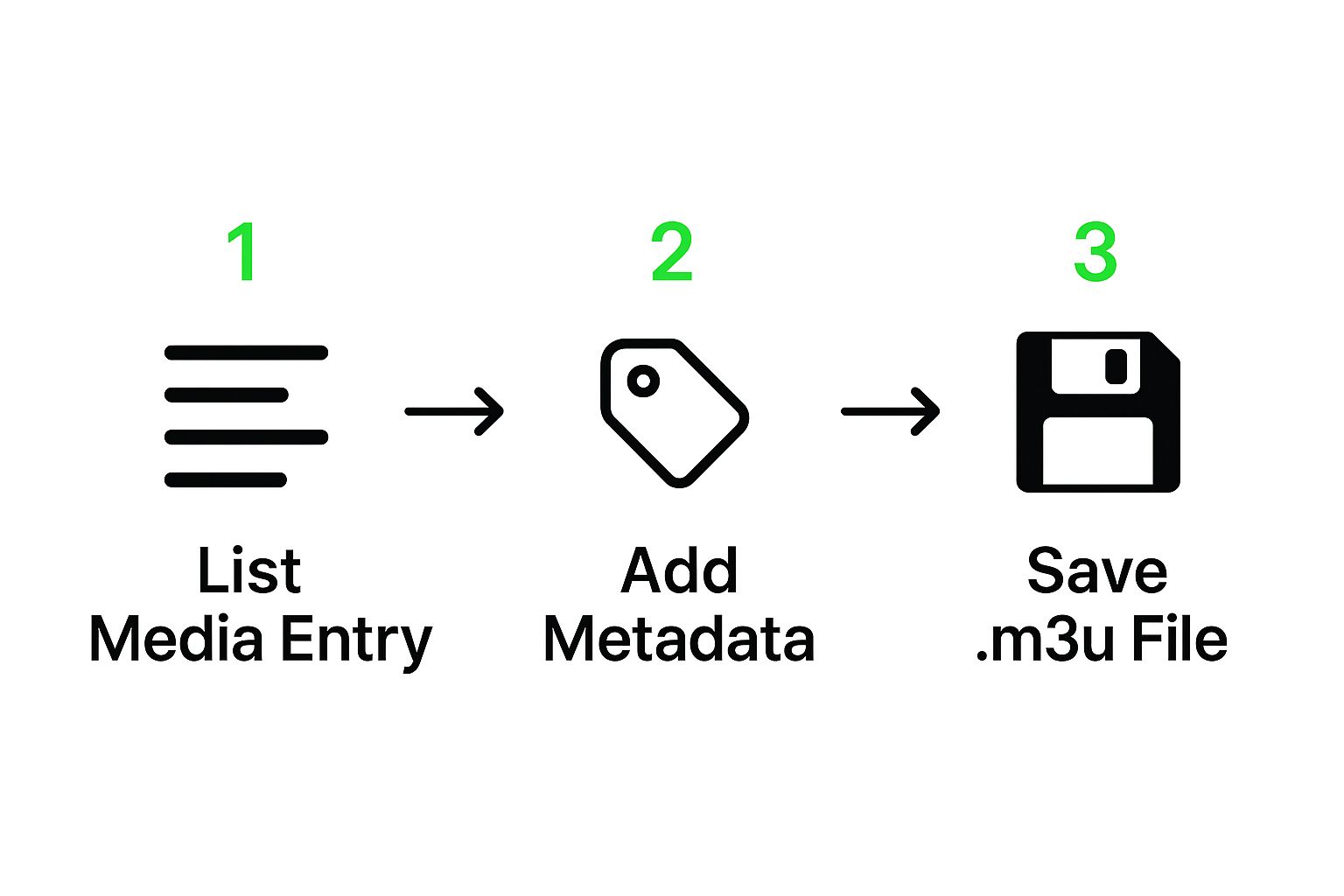
As you can see, you're just listing your media, adding some details, and saving the file the right way.
Before we dive into an IPTV example, let's look at the basic components that make up these files. Understanding these tags is key to building a playlist that works perfectly.
This table breaks down the core parts of a typical M3U entry.
| Component | What It Does | Real Example |
|---|---|---|
#EXTM3U | The mandatory header. It must be the first line. | #EXTM3U |
#EXTINF | Provides metadata for the next link in the list. | #EXTINF:-1 tvg-id="Channel1.us",Channel One HD |
tvg-id | A unique identifier for the channel. Helps the player fetch the right Electronic Program Guide (EPG) data. | tvg-id="MyChannel.ca" |
tvg-logo | The direct URL to the channel's logo image. | tvg-logo="https://.../logo.png" |
group-title | The category or group the channel belongs to, like "News" or "Sports." | group-title="USA News" |
| Stream URL | The actual web address of the live stream or media file. This always goes on the line after the #EXTINF tag. | http://server.com/live/stream/12345.ts |
These are the building blocks you'll be working with. Once you get the hang of them, creating and editing playlists becomes second nature.
For a real-world example, here’s what an entry for an IPTV channel might look like in your text file:
#EXTINF:-1 tvg-id="ChannelOne.us" tvg-logo="https://some.url/logo.png" group-title="News",Channel One HD
http://server.com/live/stream/1234.ts
You just repeat that two-line format for every single channel you want to add.
Once you’ve listed all your entries, the final step is to save the file. This is where a lot of people trip up, but it's an easy fix.
You need to save the file with the correct extension. Instead of the default .txt, you have to name it with .m3u or .m3u8.
Pro Tip: If you're using Notepad on Windows, click "Save As," then change the "Save as type" dropdown menu to "All Files (*.*)". Then, you can name your file
my_playlist.m3u. This stops Notepad from sneakily adding.txtto the end, which would createmy_playlist.m3u.txt—a file your player won't recognize.
I personally recommend using the .m3u8 extension, as it offers better support for international characters (like accents or symbols) in channel names.
Once saved, your playlist is ready to go! To see how to load it, you can check out our complete guide to the IPTV Player M3U playlist features.
Sure, a basic list of stream links works, but let's be honest—it's a mess to navigate. To really take your viewing experience to the next level, you need to add metadata. This is the secret sauce that turns a simple text file into a polished, professional-looking channel guide right inside your player. It’s what separates a raw list from an interactive menu you'll actually enjoy using.
The magic happens with a little something called the #EXTINF directive. Just think of it as a name tag for every single stream in your playlist. This one line of text is where you can pack in the channel's name, its category (like "Sports" or "Movies"), a logo, and even the ID needed to pull in an Electronic Program Guide (EPG). Without it, your player just sees a cryptic URL. With it, the player sees "Channel One HD," complete with its logo, neatly filed under the "News" category.
At first glance, the #EXTINF line might look a bit like code, but it's really just a simple pattern that you repeat for each channel. Once you get it, you get it.
Here’s a quick rundown of the most important bits you'll be using:
tvg-id: This is the unique ID for a channel. Your EPG service uses this to match the channel to the correct TV guide listings. It's crucial for getting program info to show up.tvg-logo: This is just a direct link to an image file for the channel's logo. It’s what makes your playlist look slick and professional.group-title: This is how you categorize your channels. Think "Sports," "Movies," or "USA News." If you have hundreds of channels, this is absolutely essential for keeping things organized.This whole system of adding extra info is part of what's known as the extended M3U format. The original M3U was just for music playlists, but adding tags like #EXTM3U was a game-changer. Today, it’s the standard; in fact, over 80% of IPTV services rely on the #EXTM3U format to deliver these rich, user-friendly playlists. If you want to geek out on the history, you can find more about how this format evolved on FileFormat.com.
Let's see what this looks like in practice. Here’s a complete entry for a single channel that you can copy and adapt for your own list.
#EXTINF:-1 tvg-id="ActionMovies.us" tvg-logo="https://i.imgur.com/example-logo.png" group-title="Movies",Action Movie Channelhttp://server.com/live/stream/movie-channel/12345.m3u8
Pro Tip: Take a few minutes to organize your playlist with logical groups like "News," "Kids," and "Sports." Trust me, it makes navigating hundreds (or even thousands) of channels so much easier. This simple step is one of the best things you can do for a great IPTV experience.
You probably noticed the -1 right after #EXTINF. For live TV streams, this is almost always the value you'll use because the stream's duration is technically infinite. After all the tvg attributes, there's a comma, followed by the channel's display name—in this case, "Action Movie Channel." That's the name you'll actually see in your player's channel list.
And of course, for the best streaming, you'll want a device that can handle high-quality feeds without breaking a sweat.
[content-egg module=Amazon template=custom/compact associate_id=healthyfoll07-20]
So, you’ve built your perfect M3U playlist, but something’s gone wrong. Maybe a channel won’t load, or all the logos and group titles are missing. Don't worry, even a perfectly crafted playlist can hit a snag. It usually comes down to just a few common culprits.
The very first place I always look is the syntax. A single misplaced comma or a tiny typo can break an entire channel entry, or even the whole file.
It's a classic mistake, but make sure your playlist starts with the #EXTM3U header. Forgetting this simple tag is super common and will cause most players to reject the file instantly. After that, take a close look at your #EXTINF lines. A simple typo in an attribute like group-title or tvg-logo is all it takes to prevent that information from showing up.
If your formatting looks solid, the next suspect is the stream link itself. Stream URLs can go offline or change without any warning.
A really quick way to test a link is to copy and paste it directly into your web browser or a media player like VLC. If it doesn’t play there, the link is dead, and it's not a problem with your playlist file.
When you're dealing with local media files on your own device, double-check that the file paths are correct. And a pro tip: using absolute paths can create headaches later if you ever move your playlist file to a different folder or device.
A broken playlist is often just a symptom of a simple error. The most common issues are dead stream links and basic syntax mistakes. Systematically checking your links and formatting will solve the vast majority of M3U problems.
Another sneaky issue that can pop up is character encoding. If you see weird symbols or question marks where channel names should be, your file probably needs to be saved with UTF-8 encoding. This is especially important if you have international channels with special characters in their names.
Sometimes, the problem isn't on your end at all—the stream source is simply down. You can always grab some fresh, working links from our guide to free IPTV codes for Firestick to test your setup and make sure everything else is working correctly.
Building your first M3U playlist can bring up a few questions. Don't worry, that's completely normal! Here are some quick answers to the most common sticking points we see people run into.
You bet. One of the best things about M3U files is that they're just simple text. There's nothing fancy about them.
You can whip one up on a Windows PC using a basic tool like Notepad, on a Mac with TextEdit, or even on your phone with a simple text editor app. The only crucial part is saving the file with the correct extension—either .m3u or .m3u8.
This is a classic one, and it almost always comes down to a small mistake in your metadata. It's an easy fix once you know where to look.
Here are the usual suspects:
tvg-logo tags are probably broken or have a typo. Double-check them in a browser.tvg-id you've assigned to a channel might not be the same one your EPG provider uses. They have to match perfectly.An M3U playlist is only as good as the information inside it. Taking a few extra minutes to double-check your logo URLs and EPG IDs is the single most important step for getting that polished, professional-looking channel guide.
Great question. The main difference boils down to how characters are handled, which is more important than you might think.
A standard .m3u file uses your computer's default character encoding. This can sometimes cause problems if you have channels with international names or special symbols, making them appear as gibberish.
A .m3u8 file, on the other hand, is specifically designed to use UTF-8 encoding. This is a universal standard that supports a massive range of characters from nearly every language. For this reason, .m3u8 is the highly recommended format for any modern IPTV playlist. It just works.
And if you're looking for quality streams to add, it's worth checking out our updated list of the best IPTV providers. Finding a reliable source can save you a lot of headaches when building out your perfect channel list.
Ready to see your creation in action? With Free IPTV Player, there’s no software to install. Just paste your M3U link or upload your file right in your browser and start streaming instantly on any device you own. Give it a try today at https://freeiptvplayer.net.