There's nothing worse than settling in for a movie night, only to be ambushed by that dreaded buffering wheel. A pixelated picture or audio that’s completely out of sync can ruin the whole vibe. Fixing these common streaming headaches can immediately solve most stuttering issues.
When you're trying to improve your video quality, the problem usually falls into one of three buckets: your home network, your streaming device, or the IPTV service itself. Pinpointing the real source of the trouble is the first, most important step toward getting that crystal-clear picture you're after.
A lot of streaming frustrations come down to a shaky or slow internet connection. Understanding why your internet might be slow is the perfect place to start. A quick speed test will tell you right away if your network has enough juice for HD or 4K streams.
Before you start messing with complicated settings, let’s cover the basics. A simple router restart is often enough to clear up network traffic jams. If you can, switching from Wi-Fi to a wired Ethernet cable gives your stream a much more stable and reliable connection.
This image perfectly captures that moment of frustration we all want to avoid. The goal is to end buffering for good.
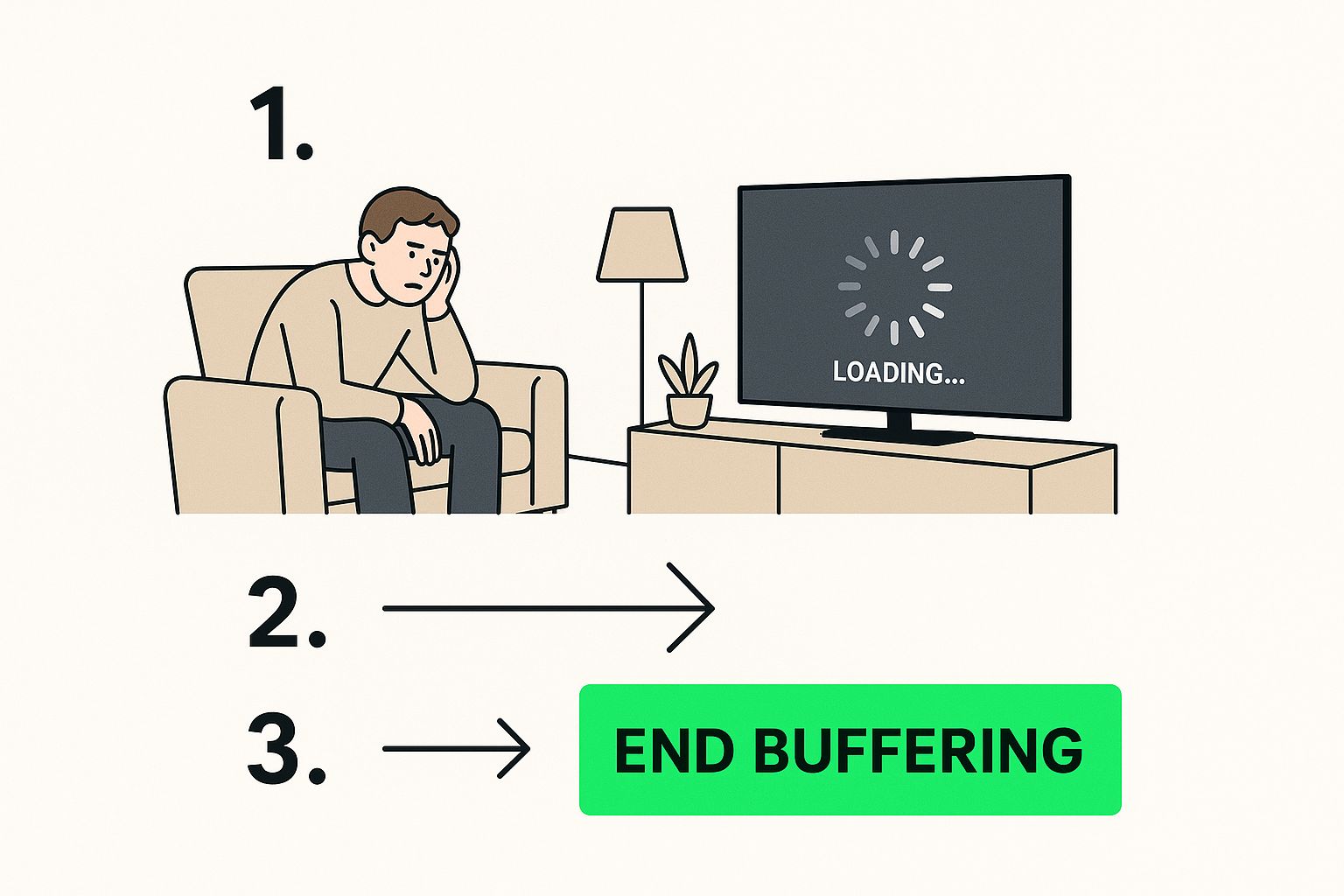
Sometimes, the issue isn't your internet at all—it's the device you're using. An older streaming stick or a computer bogged down with too many background apps can really struggle to process high-quality video.
To help you get straight to the solution, I've put together a quick checklist. Think of this as your first line of defense against bad streams. It's designed to be simple and effective, helping you knock out the most common problems right away.
| Problem Area | Quick Solution | Why It Works |
|---|---|---|
| Internet Speed | Run a speed test. You need at least 25 Mbps for 4K. | Confirms if your connection is fast enough for high-quality streams. |
| Hardware Glitches | Unplug your modem, router, and device for 60 seconds. | A "power cycle" clears temporary errors and refreshes connections. |
| Network Congestion | Pause large downloads and disconnect unused devices. | Frees up bandwidth so your stream gets the resources it needs. |
This table covers the essentials that fix a surprising number of streaming issues. By running through these simple checks, you can often get your stream back on track without needing to dive into more technical fixes.
Think of your home network as the digital highway your IPTV stream travels on. If that highway is full of potholes, traffic jams, or slow speed limits, you're going to get buffering, pixelation, and a whole lot of frustration. To really boost your video quality, we need to make sure this highway is wide open and running at full speed.
Before we even touch any hardware, let's quickly talk about two key ideas: bandwidth and latency. Bandwidth is how much data can travel at once—think of it as the number of lanes on the highway. Latency is the delay it takes for that data to get from the server to you, which is the travel time. For a smooth IPTV experience, you need both high bandwidth and low latency.
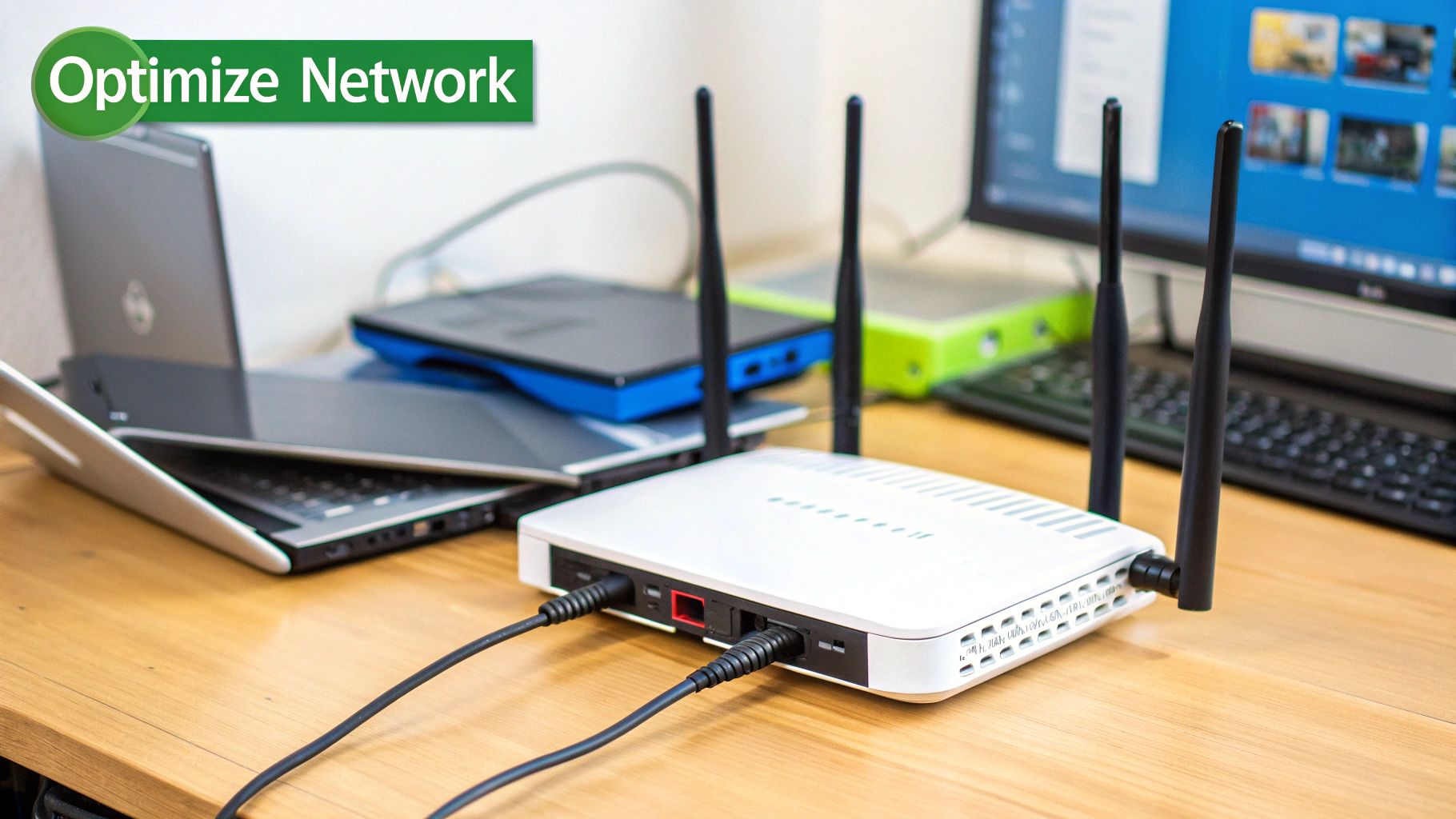
This is why it’s so important to know what a good internet speed actually looks like for streaming. If you're not sure your current plan is cutting it, take a look at our guide on the ideal internet speed for streaming.
Your router is the traffic controller for your entire home network. An old, underpowered router is going to buckle under pressure, especially when multiple devices are trying to connect at once. Upgrading to a modern router built for streaming can make a night-and-day difference.
Here are a couple of solid options to consider for a major upgrade:
Honestly, the single most effective upgrade you can make for streaming quality is switching to a wired connection. Wi-Fi is convenient, but it’s vulnerable to interference from walls, kitchen appliances, and even your neighbor's network.
A direct Ethernet connection gives you a stable, faster, and more reliable link straight from your router to your streaming device. High-quality CAT6 Ethernet cables are cheap and guarantee you’re squeezing every bit of speed out of your internet plan.
Hardware isn't the whole story. A few simple tweaks in your router settings can prioritize your IPTV stream and keep it running smoothly.
Most modern routers have a feature called Quality of Service (QoS). This setting lets you tell your router which devices or apps are most important. By giving your IPTV player high priority, you’re ensuring it gets the first slice of the bandwidth pie, even when other people are browsing or downloading on the same network.
This idea of adjusting on the fly is a huge deal in the streaming world. The global Video Quality Optimization market was valued at USD 1.87 billion and is growing fast, all thanks to tech that adjusts video quality in real-time to prevent buffering. You can read more about these industry-wide efforts in this detailed market report. Setting up your home network properly is your way of doing this on a personal level, making sure you get the best stream possible.
While a fast network is the first piece of the puzzle, the device you're streaming on is where the magic really happens. Your smart TV, streaming stick, or PC handles the heavy lifting of decoding and displaying the video, and its performance is what makes or breaks your picture quality.
Think of your streaming device as the engine in a car. Even with the best fuel (your internet connection), a weak engine is going to give you a choppy, sputtering ride. That's why tweaking your hardware settings is an absolute must for flawless IPTV. A powerful device can make a standard stream look fantastic, but an older, underpowered one will turn even a high-quality 4K stream into a pixelated mess.
One of the most effective tools hiding in your device's settings is hardware acceleration. When you flip this switch, you're telling your IPTV player to offload video processing from the main brain, the CPU, to the graphics specialist—the GPU. GPUs are built from the ground up for visual tasks, so they handle video far more efficiently.
Turning this on can be a night-and-day difference. It often eliminates stuttering, gets rid of that annoying screen tearing, and delivers silky-smooth playback, especially with demanding 4K content. You can usually find this option buried in your IPTV player's advanced settings menu.
Enabling hardware acceleration is like hiring a specialist. Instead of forcing your general-purpose CPU to struggle with complex video decoding, you're letting the expert GPU take over. The result is a cleaner, more efficient performance every single time.
This one sounds simple, but you'd be surprised how many people ignore it. Keeping your device's firmware and software up to date is crucial. Manufacturers are constantly pushing out updates with performance boosts, bug fixes, and better support for new video codecs. Skipping these updates means you're missing out on free optimizations that directly improve video quality.
On top of that, a device bogged down with a full cache will inevitably feel sluggish. Just learning how to clear the cache on a popular player like Kodi can often solve a host of performance problems and bring back that snappy, responsive feel. This bit of simple housekeeping applies to almost any streaming device or app you use.
If you've tried everything and your current device is still gasping for air, it might be time for an upgrade. Let's be honest: not all streaming sticks are created equal. Picking one with a beefy processor and plenty of RAM is the foundation of a premium IPTV experience.
For a reliable, high-performance setup that just works, these are my go-to recommendations:
Investing in capable hardware gives you the solid foundation you need, ensuring your device is never the bottleneck in your streaming setup.
Alright, once you've sorted out your network and confirmed your hardware is up to snuff, it's time to dive into the software side of things. This is where the magic really happens. We're moving past the basics and into the world of intelligent, on-the-fly video enhancement. Let's squeeze every last drop of quality out of your stream.
The most exciting leap forward here is all about artificial intelligence. Many of the newer streaming sticks and high-end TVs have AI-powered upscaling built right in. This tech is smart; it analyzes lower-resolution video, sharpens the details, smooths out digital noise, and makes it look fantastic on a 4K screen. Modern streaming relies heavily on these AI technologies to process images and deliver a better picture.
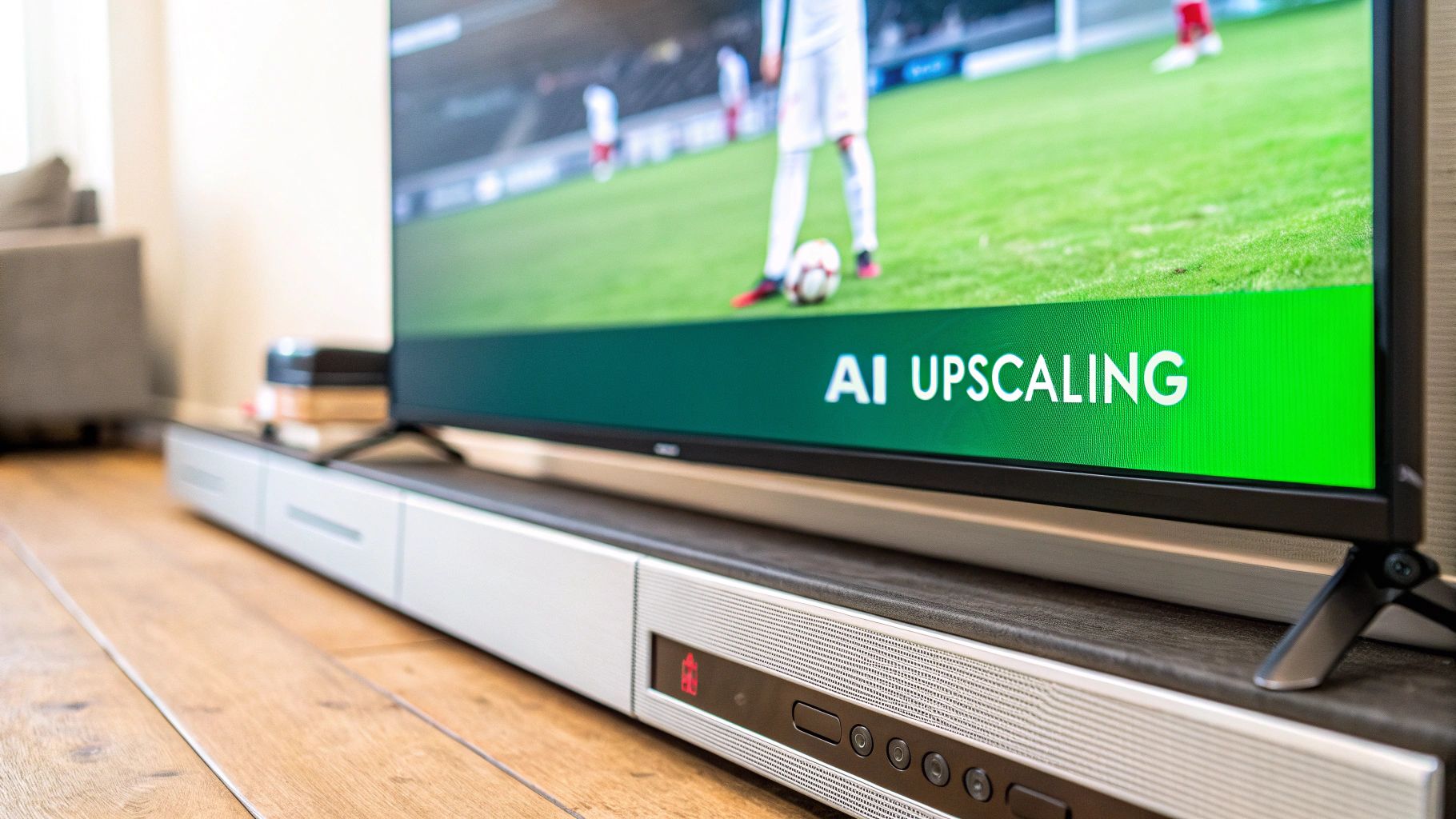
There's a reason the global AI video enhancer market is taking off, with projections showing a 19.5% CAGR from 2024 to 2030. These tools use deep learning to literally rebuild missing details in footage, pulling near-HD quality out of standard-definition sources. It's pretty incredible stuff.
Beyond AI, your IPTV player itself is packed with settings that can unlock a better picture. It might seem a little intimidating to poke around in the "advanced" menu, but a few small tweaks can make a world of difference. Think of these settings as a way to custom-tune the player to your exact setup.
One of the biggest game-changers is the video decoder. Most players give you a choice between software (CPU) and hardware (GPU) decoding. As we touched on earlier, you almost always want to go with hardware decoding. It offloads the heavy lifting to your device's graphics processor, resulting in much smoother playback.
Another key setting to play with is the buffer size. This tells the player how much of the video to download ahead of time.
Don't be afraid to experiment here. Finding that sweet spot between stability and speed is all about what works for your home network.
It’s not just about the player—the M3U playlist you load has a real impact on performance, too. Loading a massive file with thousands and thousands of channels can seriously bog down your player. You'll notice it right away with slow startup times and laggy navigation.
A common mistake is loading a massive, unedited playlist file. A leaner playlist means your player has less data to process, resulting in a faster, more responsive experience every time you open the app.
A clean, organized playlist is a cornerstone of a great IPTV setup. While many of the best IPTV players are built to handle large lists, trimming down your M3U file is a universal best practice. By simply removing the countries, categories, and channels you never watch, you’re not just decluttering your interface. You're actively making your player faster and more stable.
Let's be honest. You can tweak your network settings and upgrade your hardware all day long, but none of it will make a lick of difference if the video source itself is garbage. The single biggest factor in your quest for better video quality is, without a doubt, the IPTV service you're using.
A premium provider invests real money into stable servers and delivers high-bitrate streams. That's the secret sauce for a crisp, buffer-free picture. A cheap, low-quality service will often compress their video streams way too much to save on bandwidth, and you're left with a pixelated, blocky mess. A reliable service, on the other hand, makes sure their streams have enough data to render sharp details and smooth motion, which is crucial for watching fast-paced sports or action movies.
The backbone of any top-tier IPTV service is its infrastructure. This is about more than just cramming in thousands of channels; it's about the stability and speed of the servers beaming those channels to your screen. When a provider has a robust server network, it can handle primetime—like a major sports final—without dropping the ball on quality.
The best IPTV providers are obsessed with consistency. They get that a stable 1080p stream is infinitely better than a 4K stream that's constantly buffering or downgrading. It’s this rock-solid reliability that truly defines a quality service.
If you're on the hunt for a dependable option that puts stream quality first, we suggest checking out a service like IPTV Now. It's a solid choice for viewers who just want a consistent, high-quality picture without the drama.
Beyond just picking a good service, the way you manage your M3U playlist can have a huge impact on performance. Many providers give you these massive playlists with thousands of channels from all over the world. While it sounds cool, loading that entire list every time you open your player can slow things to a crawl.
A bloated playlist forces your device to process a ton of data it doesn't need, leading to slow startup times and a laggy interface. The fix is simple: use a playlist editor to trim the fat.
This simple bit of housekeeping can make your IPTV player feel much faster and more responsive. For a deeper dive into what makes a service stand out, you can check out our detailed comparison of the best IPTV service providers.
Interestingly, a lot of the magic behind the scenes comes from the video analytics market, which uses AI to help providers deliver stable streams. In fact, software solutions make up nearly 79.3% of the industry's revenue. This just shows how important cloud platforms are for IPTV providers. You can find more insights on how analytics power modern streaming on Grand View Research.
Even after tweaking all the settings and optimizing your setup, a few nagging questions might still be floating around. That’s perfectly normal. Let's walk through some of the most common head-scratchers we hear about, so you can solve those last few issues and finally lock in that perfect picture.
These are the questions that pop up again and again. Getting them sorted is often the final piece of the puzzle.
This is a classic "it depends" situation. A VPN can be a bit of a double-edged sword for streaming. On one hand, yes, sending your connection on a little detour through a VPN server can sometimes slow things down and hurt your quality.
But here's the flip side: a top-notch VPN with servers near your actual location usually won't slow you down much at all. In fact, it can sometimes boost your quality. A lot of Internet Service Providers (ISPs) "throttle," or intentionally slow down, streaming traffic. A VPN encrypts everything, hiding what you're doing from your ISP, which lets you sneak right past that throttling for a much smoother stream.
Oh, absolutely. Your TV settings don't change the stream's data, but they completely change how that data looks on your screen. Spending just a few minutes dialing in your TV's picture is one of the easiest and most impactful wins you can get.
Think of it this way: your IPTV stream is the raw ingredients, but your TV is the chef. You can have the best ingredients in the world, but it's the chef's skill that makes the final dish amazing. Well-calibrated TV settings are what bring out the very best in your stream.
Start with the basics: brightness, contrast, and sharpness. You might also want to look for a "Game Mode" or "PC Mode." These modes cut down on extra video processing, which can give you a cleaner, snappier picture that’s perfect for live sports or anything with fast action.
If you notice your video quality takes a nosedive in the evenings or on weekends, you're not alone. You're feeling the effects of internet rush hour. This usually happens for a couple of reasons:
Plugging in with an Ethernet cable can help you bypass any Wi-Fi congestion in your own home. But if the provider's server is the real bottleneck, the only fix is to find a more reliable, premium IPTV service.
Yes, a hundred times yes. An old, outdated streaming device is a classic performance bottleneck. Older hardware often just doesn't have the horsepower to decode modern video formats like H.265/HEVC. When that happens, the player either gives up and serves you a lower-quality stream or just starts stuttering and buffering.
On top of that, older gadgets often have slower Wi-Fi chips and outdated software that just isn't built for today's streaming world. Honestly, upgrading to a modern device like a new Amazon Fire TV Stick 4K is a surprisingly cheap way to get a massive boost in both performance and picture quality.
At Free IPTV Player, we believe you shouldn't need complicated software to enjoy your streams. Our browser-based player lets you watch live TV instantly, on any device, without a single download. Start streaming in seconds at https://freeiptvplayer.net.