To start playing M3U files, you first need a media player that knows how to read them. It's a common misconception, but an M3U file isn't actually a video or audio file. Think of it more like a recipe card; it's a simple text file that lists the ingredients (links to online streams or local files) and the order to play them in.
Before we jump into the how-to, let's get a clear picture of what we're dealing with. An M3U file is basically a road map. It doesn't contain any of the actual video or audio you want to watch. Instead, it holds a list of locations—these can be URLs pointing to live streams on the internet or file paths to media saved on your own computer.
When you open an M3U file with a compatible player, the player reads this list of directions. It then goes out and fetches the content from each location, one by one, to stream it for you. This is the simple but powerful idea behind how most IPTV services can deliver thousands of channels using just a single, tiny file.
The M3U format has been around since the late 1990s, originally created by Fraunhofer for its WinPlay3 software, but it has become a true cornerstone of modern streaming. Because these files are just plain text, they are incredibly versatile. They can list media using absolute paths, relative paths, or web URLs, which makes them compatible with almost any device you can think of.
This flexibility is exactly why it's so popular. A provider can shuffle around their content, update channels, or add new streams on their servers. As long as your M3U file points to the right place, you get all the fresh content without ever needing to download a new file.
As you explore IPTV, you'll run into two main file types: the classic .m3u and its more modern cousin, .m3u8. They do the same basic job, but there's one crucial difference you should know about.
In short, M3U8 is the go-to format for modern streaming, especially for HTTP Live Streaming (HLS). It also supports cool features like adaptive bitrate streaming, which lets your player intelligently adjust the video quality based on your internet speed to prevent that dreaded buffering wheel.
Understanding this simple foundation makes everything else so much easier. If you get curious and want to tinker with your own channel lists, you should check out our guide on how to create an M3U playlist from the ground up.
To make it even clearer, here’s a quick breakdown of the two formats. This table should help you quickly see why M3U8 is generally the better choice for today's streaming needs.
| Feature | M3U | M3U8 |
|---|---|---|
| Encoding | System-default (can be unreliable) | UTF-8 (universal and reliable) |
| Primary Use | Local media playlists, basic internet radio | Modern IPTV, HTTP Live Streaming (HLS) |
| Character Support | Limited, can cause issues with non-English characters | Supports a wide range of international characters and symbols |
| Adaptive Streaming | Not natively supported | Key feature, allows quality to adjust based on network conditions |
| Best For | Simple, local music or video playlists with standard filenames | High-quality, reliable streaming of international and live content |
While both file types will get the job done for basic playlists, the robustness and advanced features of M3U8 make it the clear winner for a smooth, buffer-free IPTV experience.
Alright, you've got your M3U playlist. Now for the fun part: picking the right software to actually watch something! Think of the playlist as the ingredients and the player as the oven – you need the right one to cook up a great viewing experience.
Not all media players are built the same, especially when it comes to IPTV streams. The best choice really boils down to your device and what you’re looking for. Do you want something quick and easy, or are you after more bells and whistles?
For anyone who wants to dive right in without downloading a thing, our Free IPTV Player is the perfect browser-based tool. Just copy and paste an M3U URL or upload a file directly on our site, and you can start watching instantly. It’s a fantastic way to quickly test a new playlist or for casual viewing on any device with a web browser, whether you're on Windows, a Mac, or even your phone.
But if you're looking for a more permanent, feature-packed setup, dedicated applications are the way to go. And when people talk about dedicated players, one name always comes up: VLC Media Player. It's a true legend in the media world.

VLC Media Player is a fan favorite for good reason. It’s completely free, open-source, and you can get it on pretty much any device you can think of—Windows, macOS, Android, iOS, you name it. Its superpower is being able to play almost any file format you throw at it, including M3U and M3U8 playlists. It’s an essential tool for any serious streamer.
Of course, the world of IPTV players is huge and goes way beyond just VLC. Every app has its own feel, its own strengths, and its own weaknesses. Some have slicker interfaces, while others offer better support for features like Electronic Program Guides (EPG), which show you what's on TV and when.
To get a better look at all the top contenders, you should check out our detailed guide on the 12 best IPTV players. We break them all down to help you find the perfect match.
https://freeiptvplayer.net/12-best-iptv-player/
While software is a huge piece of the puzzle, the hardware you use can completely change the game. Watching on a tiny phone screen is fine in a pinch, but to really get the best quality on a big screen, a dedicated streaming device is the only way to fly. These little gadgets are built specifically for video, which means you get smoother playback and more stable connections than you typically would from a smart TV's built-in apps.
For a top-tier setup, we're big fans of Amazon's Fire TV lineup.
Key Takeaway: Choosing the right player is all about balancing convenience with power. A browser-based player is awesome for its simplicity, but a dedicated app like VLC or a beefy streaming stick like the Fire TV will give you superior performance and features for the best possible viewing experience.
Alright, you’ve got your playlist and you know which player you want to use. Now for the fun part—actually loading it up and watching something.
Getting your M3U file or link running is a pretty simple affair. You’ve got two main ways to do it: pasting a URL from your provider or uploading a file you have saved. Both methods are incredibly straightforward.
Our whole goal here is to get you from playlist to playback with zero fuss. We’ll walk through the process using a browser-based tool like our own https://freeiptvplayer.net/online-m-3-u-player/, which means you don't have to install a single piece of software.
This little graphic lays out the basic flow for loading an M3U file you have saved locally.
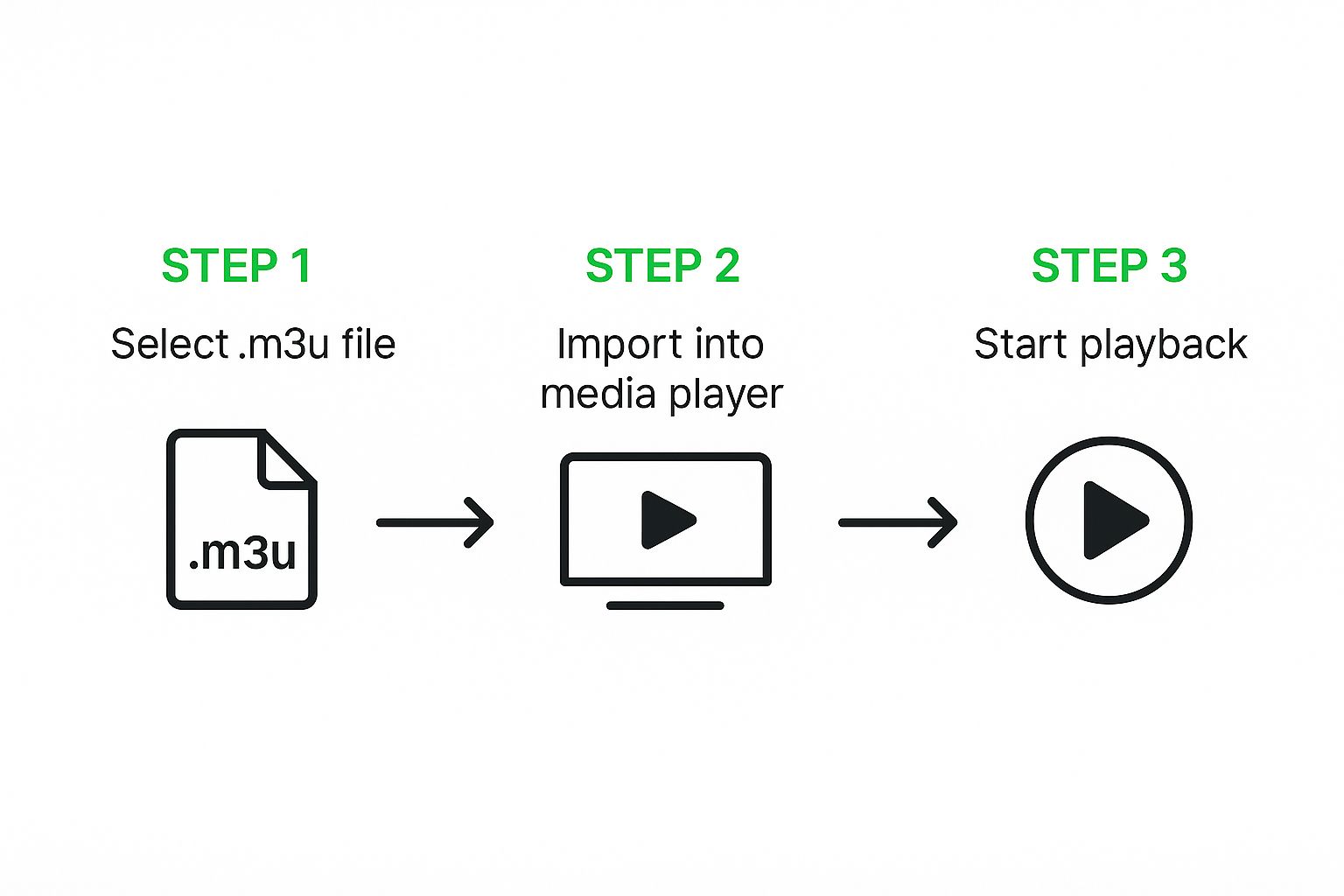
As you can see, it's a simple three-step dance: pick your file, load it into the player, and hit play. Anyone can do it.
This is the route most people take with IPTV. When you sign up for a service, they'll usually send you a welcome email containing an M3U playlist URL. Think of this link as the master key to all the channels you just paid for.
Here’s how to get it running:
The player will then get to work, parsing the playlist and pulling in all the channel data. Give it a moment, especially if it's a monster playlist with thousands of channels. Once it’s loaded, you can scroll through the list and click any channel to start watching.
What if you don't have a link? Maybe you've got an .m3u file saved right on your computer. This is pretty common if you’ve created your own custom playlist for local media or grabbed a static list from a free source online. The process is just as easy.
Instead of pasting a URL, you just need to find the upload function:
.m3u or .m3u8 file and select it.This method is perfect for testing out different playlists or for accessing media you have stored on your hard drive. It really shows how flexible the M3U format is; at its core, it’s just a simple roadmap pointing to where the media lives.
Pro Tip: Always, always double-check your M3U URL for typos before you try to load it. The single most common reason for a "failed to load" error is a bad copy-paste job. Make sure the link starts with
http://orhttps://and doesn't have any extra spaces at the beginning or end.
So, you've got your player and what looks like a perfect M3U link, but you've still hit a wall. It's incredibly frustrating when all you see is a black screen, endless buffering, or that dreaded "failed to load" message.
Don't sweat it. Most of these problems are actually pretty easy to fix with a little bit of troubleshooting. When you run into an issue, the first thing to do is check the usual suspects. Think of it as a quick diagnostic checklist before you start pulling your hair out.
Believe it or not, a single typo in a long URL is the #1 reason a playlist fails to load.
This is, by far, the most common roadblock you'll encounter. It almost always points to a problem with the M3U source itself, not your player. Before you dive any deeper, run through this quick list:
.m3u file. If you get a "404 Not Found" or some other error, the link itself is dead.An invalid M3U URL is the root cause of playback failure in a huge majority of cases. Always, always verify the link's integrity first before you start looking at more complex solutions.
What if your playlist loads just fine, but certain channels stutter, buffer constantly, or just refuse to play at all? This usually points to an issue with your internet connection or something blocking the stream.
It’s a common practice for Internet Service Providers (ISPs) to throttle or block IPTV streams to manage their network traffic. They don't like you using that much bandwidth.
A quick way to test this is by firing up a VPN (Virtual Private Network). A VPN encrypts your internet traffic, basically making it invisible to your ISP. They can't see what you're streaming, so they can't block it. If the buffering magically stops when the VPN is on, you've found your culprit.
For a more permanent fix, think about investing in a router with built-in VPN capabilities. This protects every device on your network, creating a stable and private pipeline for all your streaming.
Once in a while, playback issues can also come from a cluttered cache in your player app. If you're using something like Kodi, learning how to clear the cache on Kodi and similar players can often resolve those weird, unexplained glitches.
Getting your playlist loaded is a solid first step, but it's really only half the job. Now, we need to turn that raw stream into a smooth, crystal-clear picture that doesn't constantly stop to buffer. The secret isn't always about your internet speed; a lot of it comes down to the technology that delivers the video to your screen.
This is where you'll hear people talk about M3U and M3U8 files. They might sound similar, but understanding the difference is a game-changer for getting top-notch quality. While both point to content, M3U8 files are built for the way we stream today. They are the engine behind a cool technology called adaptive bitrate streaming, which is your best defense against that dreaded buffering wheel.
M3U8 files are the modern standard, using universal UTF-8 encoding to deliver a much smoother stream. They're the backbone of most internet video you watch, especially for live events. The magic of an M3U8 playlist is that it can point to several versions of the same stream, each at a different quality level—think 4K, 1080p, and 720p. Your player is smart enough to switch between these on the fly, picking the best one your current internet connection can handle without interruption.
This adaptability is what creates a premium feel, but it can only do so much. You still need a decent amount of bandwidth to start with. You can run a quick internet speed test to see what you're working with.
Here’s a quick guide:
If your speeds are falling short, you're likely to see buffering on higher-quality channels. This is where a service like IPTV NOW can make a difference, as they often provide streams that are better optimized to perform well even on slower connections.
Beyond your internet pipe, your device and software settings play a huge part. Dig into your media player’s settings and look for an option called hardware acceleration. Go ahead and turn that on. This tells the player to use your device's graphics card (GPU) to do the heavy lifting of video decoding, which takes the load off the main processor (CPU) and makes playback much smoother.
If you're really serious about quality, nothing beats dedicated streaming hardware. Devices like the NVIDIA Shield TV Pro or the newest Apple TV 4K are absolute beasts. They are packed with powerful processors specifically designed to handle high-bitrate 4K video, and they'll run circles around the built-in apps on most smart TVs.
Finally, let's not forget about sound. Great video deserves great audio. To really elevate your listening experience, it's worth checking out some professional headphone reviews to see what's possible. When you pair powerful streaming hardware with quality audio gear, you're not just watching TV anymore—you're creating a real home theater experience.
Jumping into the world of M3U files can feel a bit technical at first, and it's totally normal to have a few questions. Let's clear up some of the most common things people ask, so you can get back to streaming with total confidence.
You sure can! It's easier than you might think. An M3U file is really just a simple text file, meaning you can pop it open and make changes with a basic text editor like Notepad on Windows or TextEdit on a Mac. This is super handy if you want to clean up your playlist by removing channels you never watch or just rearranging things to your liking.
When you open the file, you'll see a pattern. There's usually a line that starts with #EXTINF:, which holds the channel's info, and right below it is the actual stream URL. To get rid of a channel, just delete that pair of lines. Once you're done, just save the file, making sure it still has the .m3u or .m3u8 extension.
A quick heads-up: If your playlist is loaded from a URL provided by your IPTV service, any edits you make locally won't stick. The player will just pull a fresh, unedited copy from the link next time it updates. This trick works best for M3U files you've saved directly to your device.
This is probably one of the most common frustrations with IPTV, and a few different things could be going on. A link that was working perfectly yesterday can go dead overnight.
Here’s what’s usually behind it:
To avoid the headache of unreliable streams, it often pays to go with a well-regarded service. A provider like IPTV NOW, for example, is known for stable links and solid uptime, which can save you a lot of troubleshooting time.
On their own, M3U files are completely safe. Think of them as a simple map or a list of directions—they're just text files and can't run any harmful code on your device.
The real question is the safety of the content the file points to. The security of your streaming experience depends entirely on where you got your playlist. Stick with reputable IPTV providers to make sure you aren't accidentally accessing illegal content or streams that could be malicious.
Armed with these answers, you're ready to tackle just about any M3U issue that might pop up. For a super simple and secure way to watch your streams right in your browser, give the Free IPTV Player a spin. Just load your M3U link or file and you can be watching in seconds, no downloads needed.