Learning how to stream your favorite TV channels is a lot easier than you might think. All it really takes is a solid internet connection and a device that can connect to it. That's it. You can finally watch live television without being locked into those old-school cable or satellite contracts. This approach just gives you so much more flexibility, choice, and control over what you watch.
Let's be real, the way we all watch TV has completely flipped on its head. More and more of us are ditching traditional cable and broadcast TV for a reason—internet-based streaming just makes more sense.
This isn't just a fleeting trend; it's a massive change in how we consume media. Just look at the numbers. In May 2025, streaming hit 44.8% of total TV usage in the U.S., officially flying past the combined share of broadcast (20.1%) and cable TV (24.1%) for the very first time. That's a staggering 71% jump in streaming viewership since May 2021 alone. Nielsen.com has the full story on this huge milestone if you're curious.
The reasons behind this mass exodus from cable are pretty straightforward. People are looking for better value and an experience that actually fits their life.
Here’s what’s really driving the change:
The key to unlocking this whole world of content is a surprisingly simple but powerful tool: an IPTV player. In this guide, we'll walk you through exactly how to get started with our free player and your own M3U playlist from a service like IPTV Now. It's time to take back control of your TV.
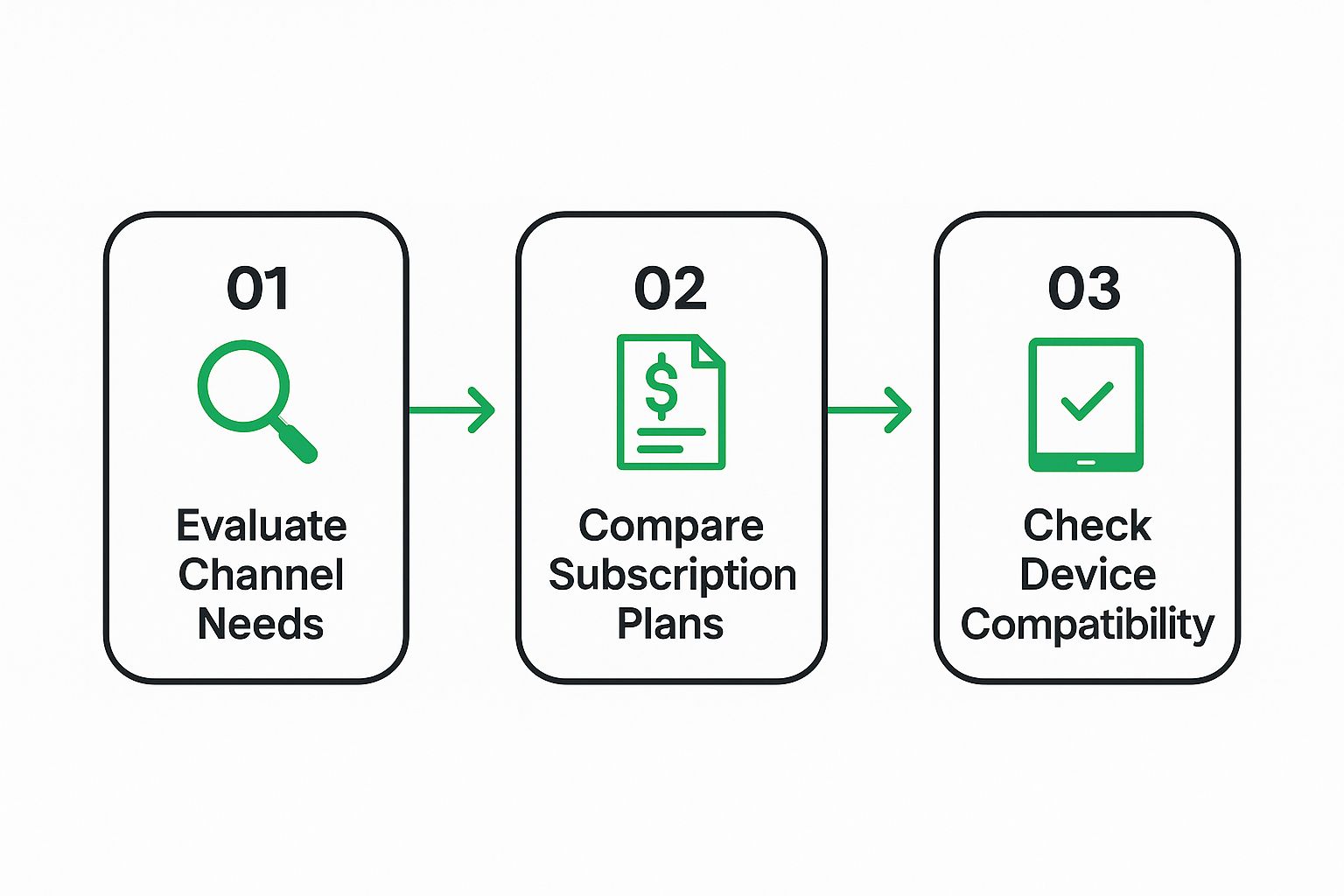
Alright, before we jump into the fun part, let's get our ducks in a row. Setting up an IPTV player to stream live TV is surprisingly simple, but you'll need three key things to make it happen: a decent internet connection, a compatible device, and your M3U playlist URL.
Think of your internet connection as the foundation of your entire setup. You can technically stream with slower speeds, but for a smooth, buffer-free HD experience, you'll want at least 25 Mbps. This will save you from that dreaded spinning wheel right in the middle of a crucial scene.
Next up is your hardware. While you can always stream from a web browser on your computer, the best couch-potato experience comes from a dedicated streaming device. Something like an Amazon Fire TV Stick or an Android TV box is a fantastic, budget-friendly choice. If you're weighing your options, our streaming device comparison breaks down the best gear out there.
The last piece of the puzzle is the content itself, which is delivered via an M3U playlist. Don't let the name intimidate you. An M3U playlist is just a simple link that tells your player where to find all the live TV streams. It's basically your digital channel guide.
If you're a bit of a tech enthusiast and want to peek behind the curtain, a little bit of knowledge can go a long way in optimizing your stream quality. Diving into understanding streaming protocols like RTMP and RTSP can be a fascinating read.
For a great starting point with a massive channel selection and stable streams, I often point people toward the playlists from IPTV Now. They've been reliable and make it easy to get up and running.
To make picking your hardware even easier, I've put together a quick look at some of the most popular devices that play nicely with IPTV players. This should help you find the right fit for your living room and your wallet.
| Device | Key Features | Best For | Amazon Link |
|---|---|---|---|
| Amazon Fire TV Stick 4K | 4K Ultra HD, Dolby Vision, Wi-Fi 6, Alexa Voice Remote | Budget-conscious users seeking high-quality 4K streaming and smart features. | Check Price on Amazon |
| NVIDIA SHIELD TV Pro | AI-enhanced upscaling, Dolby Vision/Atmos, powerful processor | Power users and gamers who demand the best possible performance. | Check Price on Amazon |
| Chromecast with Google TV | 4K HDR, Google Assistant, personalized recommendations | Users integrated into the Google ecosystem who want a simple interface. | Check Price on Amazon |
Each of these devices brings something unique to the table, but all of them will give you a solid, reliable platform for your IPTV adventures. Once you've got your gear, you're ready to move on to the setup process.
Alright, you’ve got your M3U playlist link ready to go. Now for the fun part: plugging it into the player and bringing those channels to life. This is where you’ll see just how simple it is to get from zero to a full channel guide in a matter of seconds.
First thing's first, head over to our free player. You'll notice the interface is clean and straightforward—no unnecessary clutter. We designed it that way on purpose. Your main focus will be the input field, which is clearly marked for your M3U playlist URL. This is where you'll paste the link from your IPTV provider.
This single copy-and-paste action is the key that unlocks your entire streaming setup. Think of it as the command center for thousands of potential channels. To show you exactly where to look, here’s a screenshot of the player's interface.
As you can see, we kept the design minimal so you can get started without any guesswork.
Once your M3U link is pasted into the field, just hit the "Load" button right next to it. The player will immediately get to work, connecting to the source and pulling in all your channel data. Give it a few seconds, especially if you have a massive playlist. It’s fetching everything from channel names and logos to the actual stream information.
The demand for this kind of flexible content is absolutely exploding. In fact, the global sports streaming market alone is expected to hit $33.9 billion by 2025. With a compound annual growth rate of 12.6% projected through 2030, it’s clear why so many people are cutting the cord and looking for better ways to watch.
Pro Tip: I can't stress this enough—double-check that M3U URL before you paste it. A single typo or an extra space at the end is the number one cause of the dreaded "playlist not loading" error. The safest bet is always to copy it directly from your provider's dashboard. A reliable service like IPTV Now makes this easy.
Getting this initial setup right is the most important step. It ensures all your channels populate correctly, leaving you ready to dive in and start exploring.
Alright, so you've got your channels loaded up. Nice work! But just hitting 'play' is only the beginning. Now it's time to really dig in and make the player yours—transforming it from a basic tool into your personal command center for entertainment.
Let's be real, a massive channel list can be a bit much at first. The trick is to lean on the search bar. It’s your best friend for instantly jumping to a specific news channel or finding that one sports network you're looking for. From there, creating a 'Favorites' list is an absolute game-changer. Just mark your go-to channels, and you've instantly built a personalized guide for one-click access. No more endless scrolling.
Beyond just organizing channels, getting the audio and quality settings right is what gives you that premium feel. A lot of streams come with multiple audio tracks or subtitle options, which is perfect if you have a multilingual household or you're trying to catch some quiet dialogue in a movie.
But here’s the most important part: matching the stream quality to your internet connection. This is where you can make a huge difference in your experience.
This level of control is what separates a frustrating streaming session from a flawless one. Your internet speed is the foundation here; if you're constantly fighting with buffering, it might be time to optimize your internet connection for streaming.
Ultimately, spending just a few moments on these small adjustments empowers you to create an experience that feels like it was built just for you. By organizing your channels and tweaking the settings, you ensure our free player delivers the smooth, reliable performance you're looking for, making it your go-to for streaming TV online.
Even with the best setup, you're bound to hit a snag here and there. That's just the nature of streaming. Learning how to get your channels up and running also means knowing how to fix the little hiccups that inevitably pop up. Let's walk through some of the most common headaches I've seen and how to sort them out.
Constant buffering is, without a doubt, the most frequent complaint. Before you point fingers at the player or your playlist, the first place to look is always your own home network. Wi-Fi can be notoriously fickle. If it's at all possible, a wired connection is king. Plugging your streaming device directly into your router with an Ethernet cable will give you the most stable signal, hands down.
Of course, running a long cable across the living room isn't always practical. Luckily, you've got other great options. A good Wi-Fi extender can give your signal a much-needed boost in those dead zones, and a Powerline adapter is a clever bit of kit that uses your home's electrical wiring to create a stable, wired-like connection.
For devices like the Fire Stick that don't have a built-in Ethernet port, the Amazon Ethernet Adapter is a small investment that can completely transform your streaming experience and eliminate buffering for good.
Another common frustration is getting a "playlist not loading" error. This one is almost always caused by a simple typo in the M3U URL or a temporary issue with your provider. Your best bet is to always copy and paste the link directly to avoid any mistakes. If it still doesn't load, the source might just be temporarily down. For a reliable service with solid uptime, I personally recommend checking out IPTV Now.
The massive growth in live streaming shows just how many of us are relying on these connections now. The global live streaming market, which was estimated at nearly $100 billion in 2024, is projected to explode to $345 billion by 2030. That kind of demand puts a real strain on home networks and providers alike, making a stable connection more critical than ever before. You can explore more on these live streaming trends to see just how big this is getting.
If you find that only a specific channel is acting up while everything else works fine, the problem is almost certainly with that channel's source stream, not your setup. The best thing to do is just wait a bit or let your playlist provider know about it.
Jumping into IPTV for the first time usually sparks a few questions. It's totally normal. To make sure you get started on the right foot, I've rounded up the most common ones I hear and laid out some straight-up answers for you.
Let's clear this one up right away. Using an IPTV player, like the one we offer, is 100% legal. Think of it like a web browser or the VLC media player on your laptop—it’s just a tool designed to play media.
The real question of legality comes down to where you get your M3U playlist. To stay on the right side of the law, you have to be sure you have the rights to watch the content in your playlist. This is exactly why I always tell people to stick with legitimate providers who license their channels properly, like our recommended partner IPTV Now.
This is a classic. The short answer is: it depends entirely on your IPTV provider. Most of the time, a standard subscription plan will only let you watch on one or two screens at the same time. They do this to keep people from sharing accounts and to make sure their servers don't get overloaded.
Ever tried watching on your TV while someone else uses the same playlist on a tablet, only to have it buffer endlessly or kick one of you off? That’s a single-connection limit in action. If you've got a busy household, look for a provider that offers a multi-connection plan. It’ll let you stream on several devices at once without any drama.
I've had great luck with IPTV Now when it comes to stable, multi-device plans. They're upfront about what each plan includes, so you know exactly what you're paying for.
We've all been there. You're flipping channels, and one is perfectly smooth, but the next is a stuttering, buffering mess. It's frustrating, but it usually points to one of two things: the channel's source stream is struggling, or your internet connection took a dip.
High-definition (HD) and 4K streams are bandwidth hogs. They need a lot more internet muscle to play smoothly. If your connection speed drops even a little, those high-quality channels are the first to feel it, while the standard-definition ones might keep playing just fine. The problem could also be on the provider's end if a specific channel server gets too much traffic. My go-to first step is always to run a quick speed test, and if that looks okay, I'll try switching to a lower-quality version of the channel if one is available.
Ready to give it a shot with a super simple, browser-based player? Give the Free IPTV Player a try. You don’t have to download or install a single thing—just pop in your M3U playlist URL and you're good to go.