Learning how to watch live tv online is all about pairing the right player with a good source of channels. At its core, you're using a free IPTV player to load what’s called an M3U playlist. This simple setup unlocks live news, sports, and your favorite shows, all without the painful price tag of a cable subscription.
This method hands the remote—and the control—back to you.

If you're fed up with bloated cable bills and being locked into contracts, you're definitely not alone. The big shift away from old-school TV isn't just some passing trend; it's a real change in how we all watch our favorite content. This guide is your map to cutting the cord for good and finally streaming TV on your own terms.
We’ll walk you through exactly how to use a flexible tool like our free IPTV player to open up a world of entertainment. It’s a lot simpler than it sounds and really just comes down to two things: the player itself and an M3U playlist. Think of the playlist as your digital channel guide—finding a solid one is the key to a great experience.
The move to online viewing has hit a major milestone. Back in May 2025, streaming accounted for a whopping 44.8% of all TV watching in the United States. That number officially pushed it past traditional broadcast (20.1%) and cable TV (24.1%) combined for the very first time.
Those numbers just confirm what we all feel: streaming is just more flexible and puts you in charge. By following along, you're joining the millions who've already figured this out and made the switch.
This isn't just theory; it's a hands-on plan to ditch cable without giving up the channels you actually watch. We'll cover all the essentials to get you up and running smoothly.
Here is a high-level overview of the process we'll cover, from gathering your tools to pressing play on your favorite channels.
| Phase | Main Goal | Essential Tools |
|---|---|---|
| Preparation | Gather the necessary hardware and software. | Streaming device, reliable internet, Free IPTV Player. |
| Source Channels | Find a stable M3U playlist for content. | A trusted IPTV provider for your M3U link. |
| Setup | Load your playlist into the player. | Your M3U playlist URL or file. |
| Optimization | Fine-tune settings for the best quality. | Player settings, internet connection checks. |
This table gives you a bird's-eye view, but we'll dive into the details of each step.
You can expect to learn:
If you're just starting out, you might want to check out our detailed breakdown of what live TV streaming is and how it’s different from services like Netflix. Think of this guide as your first step toward building a better, cheaper entertainment setup.
Before you can kick back and watch live TV online, you need to get your groundwork right. A perfect, buffer-free stream doesn't just happen by magic; it’s all about putting a few key pieces together that play nicely with each other. Think of it like a home theater system—every component matters for that final, crisp picture.
The heart of any modern streaming setup is a solid, responsive device. Sure, you can use our player in just about any web browser, but dedicated streaming hardware is built for one thing: handling high-quality video without the lag or stuttering you get on an underpowered laptop or phone. This is a game-changer when you’re dealing with live, high-bitrate IPTV streams.
The device you pick is the engine for your entire setup. You need something that can chew through video streams and spit them out on your screen without breaking a sweat. It's why so many people serious about watching live TV online grab a dedicated media player.
Two options that always get the job done are the Amazon Fire TV Stick 4K Max and the NVIDIA Shield TV Pro. The Fire TV Stick is a killer budget-friendly pick with speedy Wi-Fi 6E, while the Shield TV Pro is an absolute beast known for its raw power and slick AI upscaling.
If you're stuck on which one to go for, we broke it all down in our streaming device comparison.
Your streaming device is only half the story. A fast and—more importantly—stable internet connection is completely non-negotiable. It’s the highway your video travels on. Any bumps or traffic jams, and you're stuck in buffering city.
So, how much speed do you really need?
Key Takeaway: Speed isn't the whole picture. A consistent connection beats raw speed every time. A stable 25 Mbps line will give you a much better experience than a flaky 100 Mbps one that keeps dropping out.
With your hardware and internet sorted, the last two pieces of the puzzle are the software: an IPTV player and your M3U playlist.
Our Free IPTV Player is designed to be dead simple. It’s a browser-based tool, so there's nothing to install. Just open the website, and you're good to go.
The player itself is just a tool; it doesn't come pre-loaded with any channels. It needs an M3U playlist to tell it what to play. This is just a file or a URL that acts as your personalized TV guide, pointing the player to the live streams.
You can find M3U playlists all over the internet, but for a reliable list of high-quality channels, we always suggest using a trusted premium provider. A good provider makes sure the streams are stable and the channel list is actually maintained.
For a dependable source, check out a service like our affiliate, IPTVNow. The demand for live content is exploding—by the second quarter of 2025, audiences watched over 29.6 billion hours across major platforms. YouTube Live alone accounted for more than half of that, which just goes to show how crucial a reliable source is. You can see more on these trends in the Q2 2025 global livestreaming landscape report.
Alright, with your hardware all set, it's time for the fun part: making the channels come alive. This is where we’ll take your M3U playlist and plug it into our Free IPTV Player, transforming that simple link into a full-blown live TV experience. The whole thing is super straightforward, and you'll be watching in just a few minutes, even if this is your first time figuring out how to watch live TV online.
We're going to walk through adding the playlist from your provider and then setting up your Electronic Program Guide (EPG). Think of the M3U link as the "what" (your channels) and the EPG link as the "when" (the TV schedule).
This little flowchart breaks down the prep work for a smooth setup.
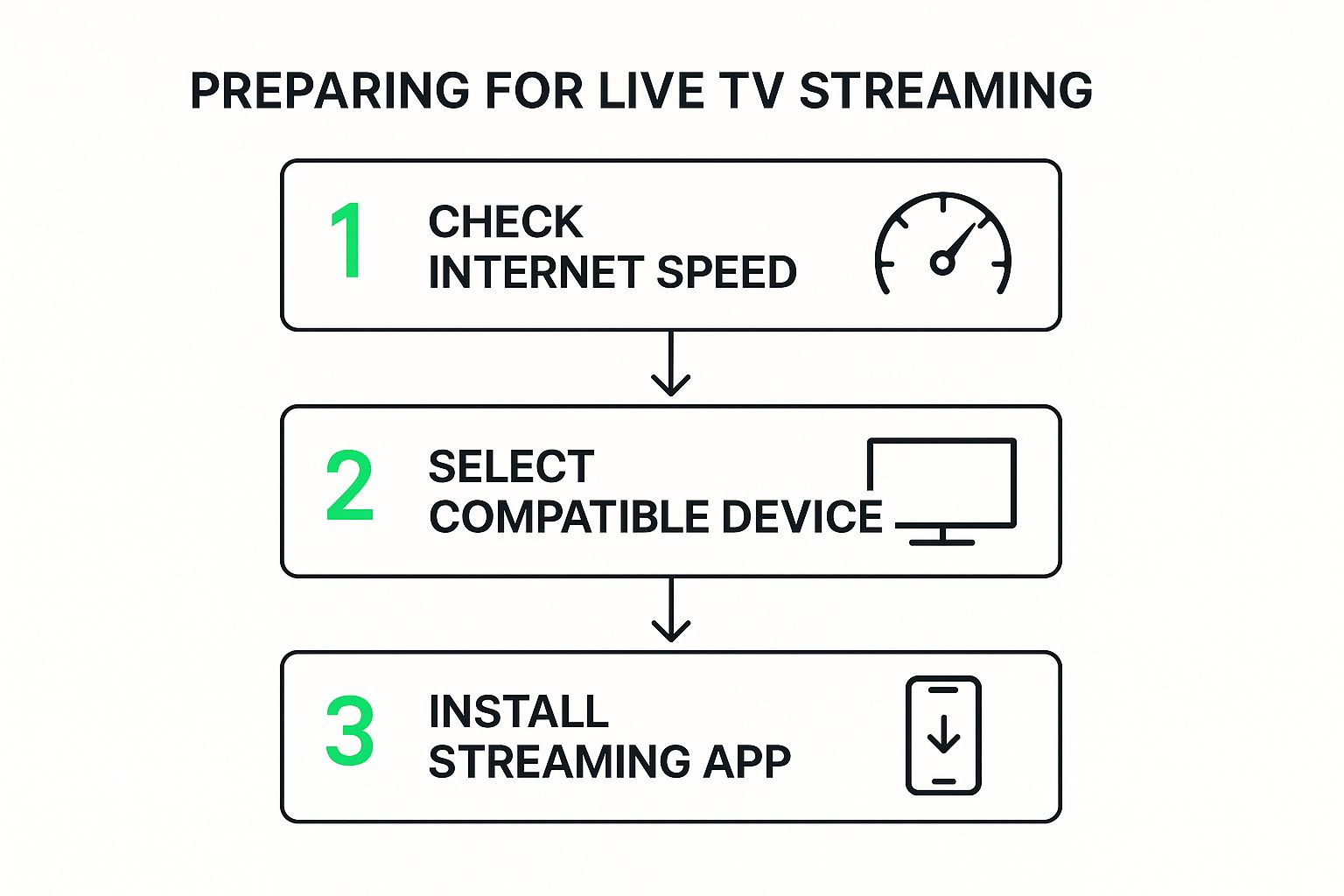
As you can see, a great streaming experience starts before you even open the player. Getting your internet connection and device choice right lays a solid foundation for everything else.
So, what exactly is an M3U playlist? It's basically a simple text file that holds all the links to your live channel streams. Your IPTV provider will give you a unique URL for this playlist, and that link is your golden ticket to all the content.
Once you've got that M3U link in hand, the rest is a piece of cake. Just open up our Free IPTV Player in your web browser, find the option to add a new playlist, and paste the URL right into the box.
You can also give your playlist a nickname like "Main TV" or "Sports Channels" just to keep things organized. If you're feeling adventurous and want to get your hands dirty, you can even check out our guide on how to create M3U playlists from scratch.
After you pop in the URL, the player will start loading all the channels. Give it a moment, especially if you have a massive list.
Having the channels is great, but knowing what's actually on is even better. That’s where the Electronic Program Guide (EPG) comes into play. Most IPTV providers will give you a separate EPG URL right alongside your M3U link.
The EPG is what feeds all the schedule data, show descriptions, and upcoming program info into your player. Adding it is just as simple as adding the playlist itself.
Pro Tip: If your program guide ever looks off or shows the wrong times, the first thing you should always try is a refresh. Our player has a simple refresh button that tells it to re-download the latest guide data from the source. It usually fixes things right up.
With everything loaded, you'll see your full channel list. A good player should make it easy to sort through potentially thousands of channels without giving you a headache. You can usually browse by categories like News, Sports, or Movies, which helps you zero in on what you want to watch.
Let's be real, if you're a sports fan, you don't want to scroll through a hundred movie channels just to find the game. Major services like YouTube TV or Fubo organize their content this way for a reason, and our player lets you do the same with your IPTV playlist. A well-organized list is clutch, whether you're looking for Sunday football on CBS or Monday Night Football on ESPN.
To really level up your experience, I'd suggest getting a device that makes navigation feel effortless. Something like the Amazon Fire TV Stick remote is perfect—it has an intuitive directional pad and voice search, making it a breeze to find your favorite shows. With this setup complete, you're ready to dive in and explore all the live TV you can handle.
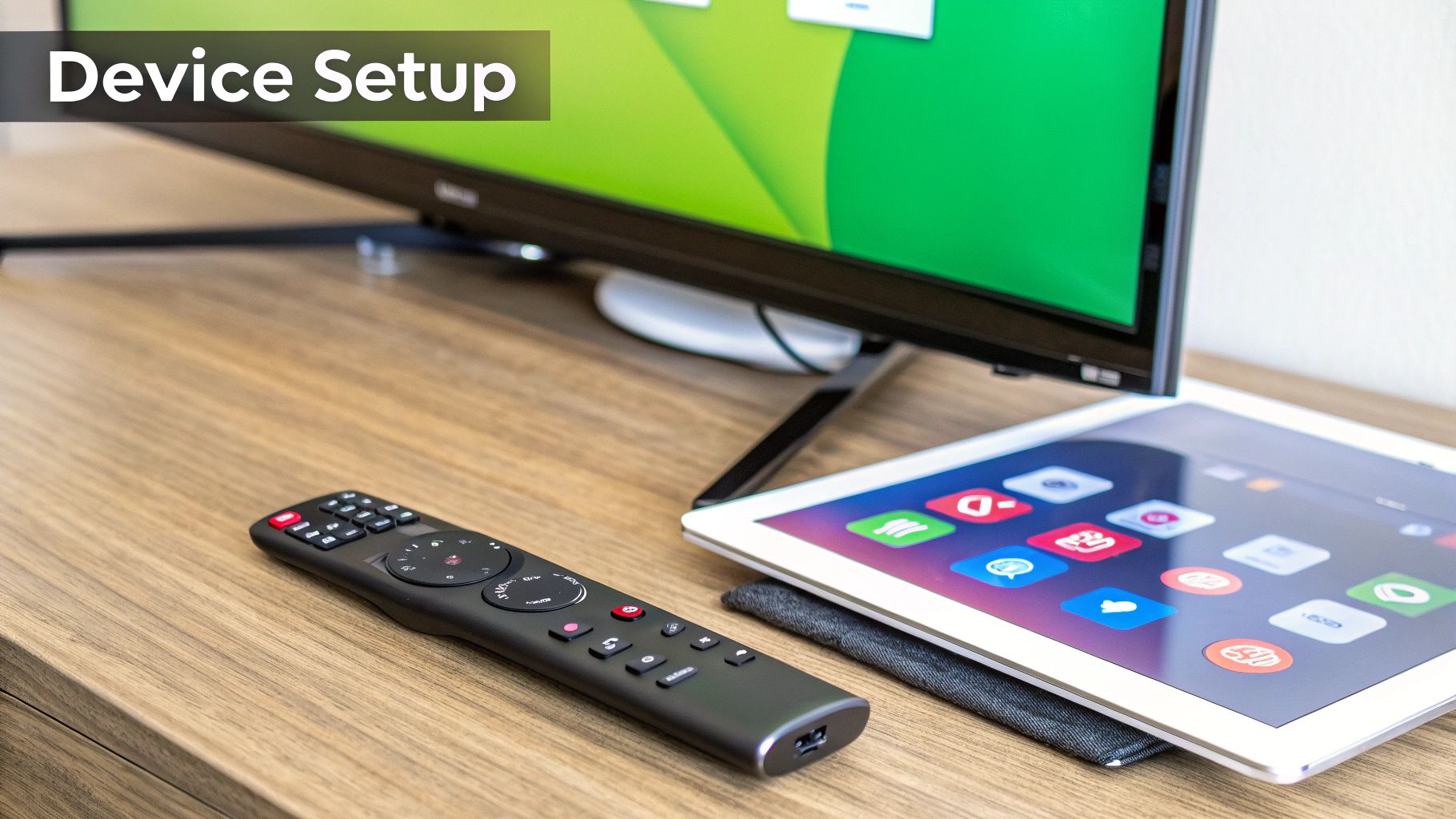
Getting your stream up and running is just the first step. The real fun begins when you start fine-tuning things to get that perfect, buffer-free picture. A working stream is one thing, but a flawless one is what we're aiming for.
Think of it like calibrating a new TV. The out-of-the-box settings are okay, but the real magic happens when you dial them in just right. A few small tweaks inside the player and to your physical setup can make a world of difference, turning a decent stream into a rock-solid entertainment hub.
Our Free IPTV Player is built to be simple, but it’s packed with powerful options under the hood for those tricky streams. One of the most useful tricks is knowing when to switch between hardware and software decoding.
Ever run into a channel that’s stuttering, glitching, or just showing a black screen with audio? The decoder is almost always the first place you should look.
Switching is just a simple toggle in the settings menu. If a channel is giving you grief, a quick swap to software decoding can often fix it instantly.
Nothing kills the vibe of a big game or movie night faster than that dreaded buffering wheel. While your internet speed is a huge factor, you can also give yourself a bigger safety net by adjusting the buffer size in the player settings.
Increasing the buffer tells the player to download more of the video ahead of time. So, if your internet connection has a momentary hiccup, the player has extra footage queued up and ready to go, preventing any interruption. It’s a small change that makes for a much more resilient stream.
A larger buffer might add a second or two of delay when you first launch a stream or switch channels, but it’s a trade-off I’ll gladly take for uninterrupted viewing during the final moments of a close game.
Let's be honest, a playlist from a provider like IPTVNow can have thousands of channels, which is just overwhelming. Scrolling through all that is a pain. The real pro move is to create custom favorite lists.
Instead of endlessly swiping, build personalized groups that make sense for you. I have a "Live Sports" list for game day, a "24/7 News" list for the mornings, and a "Kids Channels" list for when my nephew visits. This simple trick turns a chaotic channel list into a clean, personalized TV guide.
Player settings are important, but your physical network connection is the foundation of it all. Wi-Fi is great for convenience, but it's prone to interference from other devices, thick walls, and even your microwave.
For the most stable, consistent performance, nothing beats plugging in an Ethernet cable.
If your streaming stick doesn't have an Ethernet port, don't worry. An Amazon Ethernet Adapter for Fire TV is a cheap and easy solution. This one little accessory can eliminate the vast majority of buffering issues caused by unstable Wi-Fi. It’s probably the best $15 you can spend on your streaming setup.
You can also dig deeper with a comparison of wireless technologies like 5G and Wi-Fi 6 to see if your home network is up to snuff.
The live streaming market has absolutely exploded, growing from a small hobby into a massive industry. It was valued at around $100 billion in 2024, with forecasts expecting it to hit an incredible $345 billion by 2030. With so much amazing content available, taking a few minutes to optimize your setup ensures you can actually enjoy it all without a hitch.
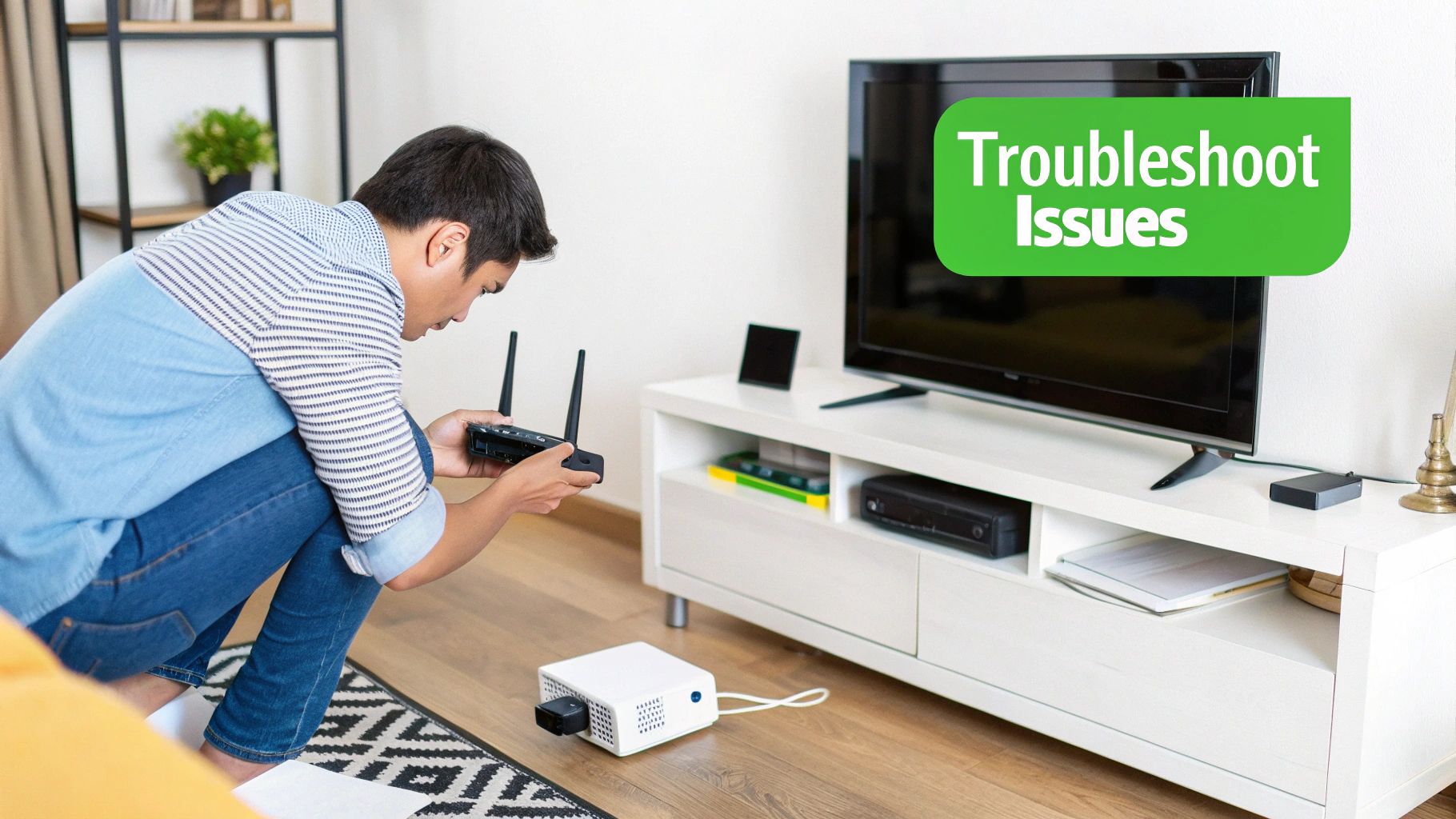
Even with a perfect setup, you're going to hit a streaming snag eventually. That's just how live TV works. The good news? Most of the usual suspects—from buffering to blank screens—are surprisingly simple to fix right from your couch.
Think of this as your first line of defense. Before you start blaming your IPTV provider or your internet company, running through a few quick checks can often get you back to your show in minutes. Let's walk through the most common headaches and how to solve them.
Constant buffering is easily the #1 frustration when you're trying to watch something live. It's that infuriating spinning circle that always pops up right at the most exciting part of a game or movie. In most cases, buffering points to a bottleneck somewhere between the stream's source and your TV.
Your own network should always be your first suspect. Is someone else in the house downloading a massive file? Are you trying to stream from a room with a weak Wi-Fi signal? A quick speed test will tell you a lot. If your speeds are dragging, try moving your router to a more central spot. Even better, use a wired connection with an Amazon Ethernet adapter for your streaming device.
It’s also smart to think about where you're connecting from, especially if you're traveling. Understanding the potential weak spots in your connection is key. Learning about travel-safe public Wi-Fi risks and protection strategies can help you maintain a smoother, more secure stream on the go.
So you click on a channel, and all you get is a black screen. Maybe you hear audio, maybe you don't. This is almost never a problem with your setup and usually points to an issue with the source stream itself. The channel might be down for maintenance or just having a technical hiccup on the provider's end.
Before you do anything else, just try a few other channels. If they work fine, the problem is definitely isolated to that one stream. Your best move is to wait a few minutes and try the channel again. If it's been down for a while, it might be worth dropping a line to your IPTV provider. For a service with solid support, you can check out our affiliate, IPTVNow.
Sometimes, a cluttered cache on your device can cause weird playback errors. While our player is browser-based, other apps can interfere. For those using other platforms, knowing how to manage this can be a lifesaver. For example, our guide on how to clear the cache on Kodi has tips that apply broadly to keeping any streaming app running clean.
Ever watch a show where the actors' lips are moving, but the words you hear are a half-second behind? That's an audio sync issue, and it can make anything completely unwatchable. It happens a lot with live broadcasts, where the video and audio signals are handled separately.
Thankfully, most modern IPTV players have a built-in tool for this. Look for a setting called "Audio Offset" or "Sync Adjustment".
Practical Tip: Fire up the stream and find a scene with plenty of dialogue. Gently nudge the audio offset in small amounts (usually in milliseconds) forward or backward until the sound lines up perfectly with the video. It's a quick fix that saves a ton of frustration.
Sometimes the player just won't load your M3U playlist or your Electronic Program Guide (EPG). When this happens, it almost always boils down to one of two things: a typo in the URL you entered or a temporary server problem with your provider.
First, go back and double-check the URL you pasted into the player. Even a single wrong character can make the whole thing fail. Your best bet is to copy and paste it again, straight from your provider's instructions, just to be sure.
If you know the URL is correct and it still isn't loading, the provider's server is probably having a momentary issue. Just give it some time and try again later. These things are typically sorted out pretty quickly.
Jumping into the world of IPTV can feel a little technical at first, but trust me, it's way easier than it looks. To clear up any lingering doubts, I've rounded up the questions I hear most often and answered them directly.
Think of this as a final sanity check before you dive in.
Yes, using a player like ours is 100% legal. The player itself is just a tool, like VLC or Windows Media Player, designed to play video content. It doesn't come pre-loaded with any channels or shows.
The real question is about your M3U playlist source. If you subscribe to a legitimate service, like our affiliate IPTVNow, you're all good. They have the rights to distribute the channels they offer. I'd strongly caution against grabbing free, random playlists you find online—they often broadcast copyrighted stuff without permission.
For a smooth stream without that dreaded buffering wheel, a stable internet connection is non-negotiable. Speed helps, but consistency is the real MVP. A connection that keeps dropping out will ruin the experience, no matter how fast it is.
Here are some solid benchmarks to shoot for:
My Two Cents: For big games or can't-miss events, go wired. An Amazon Ethernet adapter for your streaming device can bypass any Wi-Fi drama and give you a rock-solid connection directly to your router.
Our Free IPTV Player is built for one thing: giving you an awesome live viewing experience right in your browser. It’s all about seamless playback of your M3U playlists, so it doesn't have a built-in DVR or recording function.
That said, many premium IPTV providers offer their own cloud recording or catch-up TV features. Those are part of the subscription service you buy from them and work independently of whatever player you're using.
Ever click on a channel and just get a black screen? It's frustrating, but it's almost never an issue with the player or your setup. Usually, the problem is with the stream coming from your IPTV provider.
The channel might be down for maintenance or having a technical hiccup. The first thing to try is refreshing the playlist in the player. If your other channels are working fine but one specific channel stays down, the ball is in your provider's court. Your best bet is to reach out to their support team.
Ready to finally take control of your TV viewing? The Free IPTV Player gives you a simple, no-install way to watch your favorite live channels straight from your browser. Just get your M3U playlist, paste the link, and you're streaming. It’s that easy.