If you've got a Firestick, you're already halfway to a fantastic streaming setup. But what if you could take it a step further? An IPTV player for Firestick is the key. It’s an app that lets you stream live TV channels and on-demand movies directly over the internet, ditching the need for a traditional cable box or satellite dish.
Our free IPTV player acts as a simple, powerful gateway. You just load in a playlist from your provider, and boom—you've got a universe of content at your fingertips, all through your Firestick.
Let's be real: the standard Firestick experience is solid, but a dedicated IPTV player can turn it into something truly special. Pairing the right app with your device can save you a ton of money compared to cable, all while giving you access to global channels and a massive library of on-demand content. This guide is your roadmap to unlocking that power.
We'll walk you through how our free IPTV player can be your go-to solution, covering everything from the first setup steps to some pro tips for smoother streaming. Forget about confusing instructions; we're all about giving you a straightforward path to making your Firestick the true hub of your home entertainment.
The move away from cable TV isn't just a small trend—it's a massive market shift. By 2025, the global IPTV market is projected to be worth a staggering $187.01 billion. That explosive growth is fueled by people wanting more flexible digital entertainment and the wild popularity of devices like the Amazon Firestick, which make accessing IPTV a breeze.
Picking the right player makes all the difference. A well-designed app does more than just hit "play." Here’s what you actually get:
A great IPTV player for Firestick doesn’t just play your streams. It organizes them, simplifies how you access everything, and puts you squarely in the driver's seat of your viewing experience.
If you're just getting started, it helps to know what separates a great player from a frustrating one. Take a look at our guide on selecting the https://freeiptvplayer.net/best-iptv-player/ to get a handle on the essential features. It’ll give you a solid foundation as you begin your journey to better streaming.
Before we can jump into the fun stuff, we need to do a little prep work on your Amazon Firestick. This is a crucial first step that makes sure installing any third-party app, like a powerful IPTV player for Firestick, goes off without a hitch. Getting these settings right from the start prevents headaches later.
By default, your Firestick is locked down for security, only letting you install apps from the official Amazon Appstore. We just need to tweak one setting to open it up for our player.
This is the magic switch. Flipping it on lets you "sideload" apps—a fancy term for installing an application that isn't on the Amazon Appstore. Don't worry, it's a completely standard thing to do, as long as you're getting your apps from a trusted source like us.
Here’s how to get it done:
What if you don't see Developer Options? Easy fix. Go to the 'My Fire TV' screen and click on 'About'. Now, just highlight the name of your Firestick (like "Fire TV Stick 4K") and click the select button on your remote seven times. You'll see a little message pop up that says, "You are now a developer!"
Once that's done, your device is ready for the next piece of the puzzle. If you want a more detailed walkthrough, you can always check out our complete guide on setting up IPTV for Firestick.
Okay, with the permissions sorted, you need a way to actually grab the IPTV player's installation file. The best tool for the job is an app called Downloader. It's a free and incredibly useful utility you can get right from the Amazon Appstore.
Think of it as a simple web browser and file manager rolled into one, which is exactly what we need.
Just head back to the Firestick home screen, use the search function to look up "Downloader," and install it like you would any other app. This little tool is your gateway to getting our player onto your device.
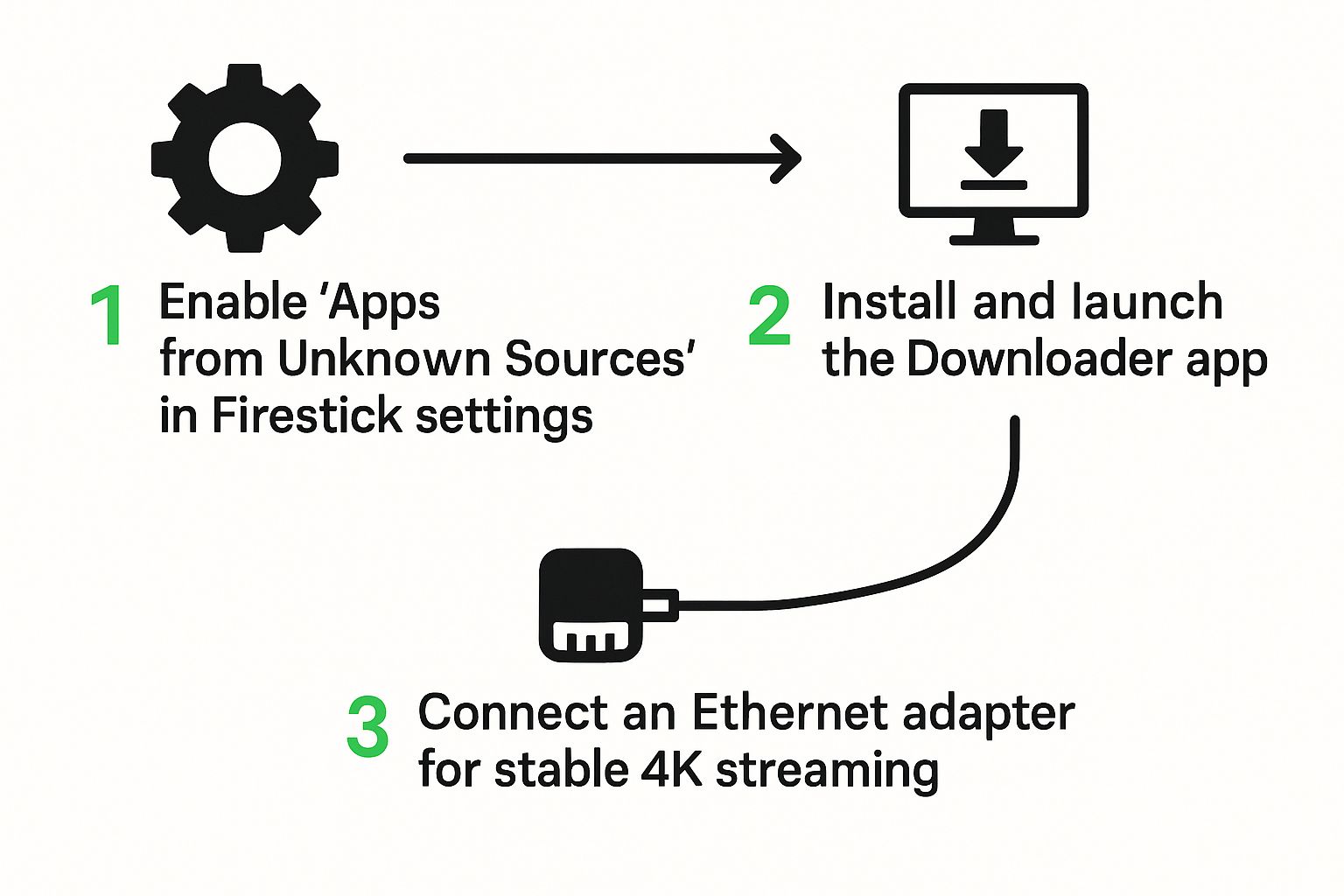
This last part isn't strictly necessary, but it can make a massive difference in your viewing experience: get an Ethernet adapter. Wi-Fi is great, but it's prone to interference and slowdowns—the number one cause of that dreaded buffering, especially if you're trying to watch high-quality 4K streams.
A Fire TV Ethernet Adapter gives you a direct, hardwired connection to your router. For a few bucks, this simple accessory gives you the most stable and consistent internet speeds possible. Honestly, for serious IPTV streaming, it’s a game-changer.
Alright, this is where the magic happens. With the prep work done, it's time to get our free IPTV player onto your Firestick. The whole process is surprisingly simple, especially since we'll be using that Downloader app we grabbed earlier.
My goal here is to make this feel less like a technical chore and more like a guided tour. By the end, you’ll see just how easy it is to get a powerful IPTV player for Firestick up and running. Let's dive in.
First things first, find and open the Downloader app from your Firestick’s app library. If it's your first time opening it, you'll likely get a pop-up asking for permission to access files on your device. Just click Allow — Downloader needs this to save the installation file.
You'll land on a simple screen with a big URL entry box. This is where we tell Downloader where to find our IPTV player.
Downloader will immediately connect to the server and start grabbing the player's installation file, which is called an APK file. You’ll see a progress bar pop up. It's usually a very quick download, often taking less than a minute.
Using shortcodes is a common trick for sideloading apps on a Firestick. It saves you the headache of trying to type a long URL with that remote, which is a fast track to typos and frustration.
Once the download is complete, the installation process kicks off automatically. You don't have to do anything else; the Firestick recognizes the APK file and gets the next step ready for you.
After the file downloads, a new screen will pop up showing the app's name and the permissions it needs. This is just your Firestick’s standard security check before installing something from outside its own app store.
Look at the bottom right of this screen, and you'll see two options: Cancel and Install. Use your remote to navigate down, highlight the Install button, and press the center select button. Your Firestick will now install the IPTV player.
This part is super fast, usually finishing in just a few seconds. When it's done, you’ll get a confirmation message that says "App installed." Now you have two choices:
I recommend clicking Done for now. This takes you back to Downloader, where you'll see a pop-up about the APK file you just downloaded. It gives you the option to Delete the file. It's a great habit to delete these installation files right away—they’re no longer needed and just eat up precious storage space. Go ahead and click Delete, then confirm by clicking Delete again.
The massive popularity of Amazon Firestick devices has made them a go-to for IPTV. For instance, the Amazon Fire TV Stick 4K Max, a top-selling model, sold over 65,000 units in a recent month in 2025, with bundles priced around $52.36. Its low cost and user-friendly nature make it perfect for running a flexible IPTV player for Firestick. You can find out more about top-selling IPTV devices on Accio.com.
Alright, with our free IPTV player for Firestick installed, it’s time for the fun part: loading it up with content. This is where your M3U playlist URL comes into play. Just think of this URL as the key that unlocks all the live channels and movies from your IPTV provider.
You’ll typically get this link right after signing up for a service, usually in a welcome email or on your account dashboard. If you're still shopping around for a provider, we've had a really good experience with services like IPTV Now. They offer solid, high-quality streams that work beautifully with our player.
When you open our player for the first time, it'll ask you to add a playlist. We kept the interface super simple. You'll see a spot to name your playlist—something easy like "My TV" works perfectly—and another field to paste in that M3U URL you got.
For most people, it’s a simple copy-and-paste job. While typing in URLs directly is common, some providers use QR codes to deliver M3U links or setup info. If that's the case, it helps to know how to scan QR codes without an app on Android to grab the link on your phone first.
Once you've pasted the link, the player will get to work loading up all the channels, movies, and TV series from your subscription. Give it a minute or two, and you'll be all set to start watching. For anyone who likes to tinker, you can also learn more about how to create and manage your own M3U playlists for a truly custom setup.
Pro Tip: Always save your M3U URL and any other login details somewhere safe. You'll be glad you have it handy if you ever need to set up the player again on a new Firestick or another device.
The IPTV market is exploding, and streaming quality on devices like the Firestick has taken a massive leap forward. Projections show the IPTV revenue in the American market is expected to rocket from $32.6 billion in 2024 to over $106 billion by 2033. This growth is a clear sign of where home entertainment is headed. You can discover more insights about these streaming service trends on Accio.com.
Choosing the right player and service is key to getting the most out of your Firestick. Here’s a quick breakdown of what features really matter.
| Feature | Why It Matters on Firestick | Our Recommendation |
|---|---|---|
| EPG Support | An Electronic Program Guide is your TV schedule. Without it, you're just blindly clicking channels. Good EPG integration is non-negotiable. | Look for players that automatically fetch and refresh the EPG from your M3U link. |
| VOD & Series Library | A clean, organized library for movies and TV shows turns your player from a simple channel surfer into a full-blown Netflix alternative. | The best players categorize content neatly, complete with posters and descriptions, making it easy to find what you want. |
| H.265/HEVC Codec | Firesticks have limited processing power. This modern codec delivers high-quality video at lower bitrates, meaning less buffering and smoother streams. | Ensure both your player and your provider support H.265 for the best 4K and HD experience. |
| External Player Support | While the built-in player should be good, having the option to use an external player like VLC can help with tricky or unsupported video formats. | A "nice-to-have" feature that provides flexibility for power users who want total control over their playback. |
Ultimately, a good combination of these features will make your streaming experience seamless and enjoyable.
A top-tier IPTV player for Firestick is more than just a video player. Two features you'll want to get familiar with right away are the EPG and VOD sections.
Electronic Program Guide (EPG): This is your interactive TV guide. Most M3U links come with EPG data baked in, and our player will automatically pull it in. You’ll see what’s on now and what’s coming up next, just like with a traditional cable box.
Video on Demand (VOD): Head over to this section to browse the entire library of movies and TV shows from your provider. Our player organizes everything into simple categories so you can easily discover your next binge-watch.
Taking a few minutes to explore these sections will completely change your viewing experience, turning your Firestick into a powerful entertainment hub that does it all.
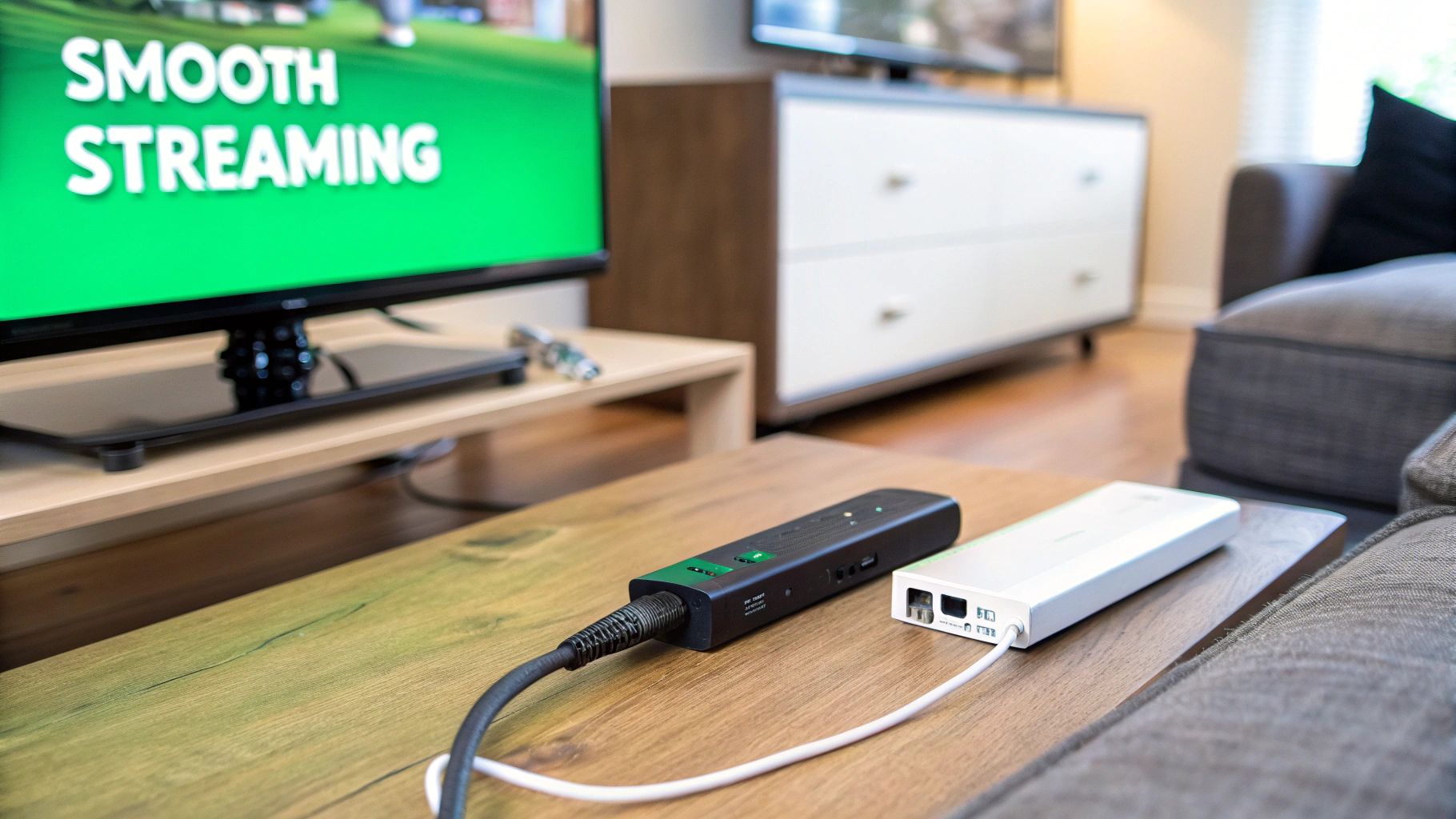
Alright, you've got the IPTV player for Firestick installed and your playlists loaded up. Now it’s time to move beyond the basics and dial in your setup for the best possible experience.
A few simple tweaks can be the difference between a frustrating, laggy stream and the smooth, high-quality playback you're after. Let's get into some pro-level adjustments.
One of the biggest game-changers is dropping Wi-Fi for a wired connection. Sure, Wi-Fi is convenient, but it’s notoriously prone to interference from other gadgets, walls, and even your kitchen microwave. A hardwired Ethernet connection gives you a stable, direct pipeline to your router, which almost always crushes Wi-Fi when it comes to streaming.
For a few bucks, a Fire TV Ethernet Adapter can single-handedly solve most buffering issues. If you want to go deeper on this, check out our full guide on how to optimize your internet connection for streaming.
A great stream isn't just about your internet. It’s also about keeping your device and the player settings in top shape. Over time, your Firestick builds up a bunch of temporary data in its cache, and that can cause all sorts of slowdowns and weird glitches.
A quick fix for many performance hiccups is to clear the cache. Just head into your Firestick’s settings, find 'Applications,' select our player, and hit 'Clear cache.' It’s a simple trick that keeps things running fresh.
Ever notice your stream quality dipping during primetime? That could be your Internet Service Provider (ISP) throttling your connection. Some ISPs deliberately slow down video traffic. A good VPN wraps your data in encryption, making it impossible for your provider to see what you're doing and selectively hit the brakes on your stream.
You also have a lot of control right inside our player. Don't be afraid to poke around in the advanced settings to get things just right.
By combining a solid network connection with smart device maintenance and a few in-app tweaks, you can build a rock-solid setup for perfect, buffer-free streaming whenever you want.
Jumping into the world of IPTV on your Firestick can bring up a few questions, especially when you're just getting your sea legs. I get it. To help clear the air, I’ve put together some answers to the most common things people ask when setting up an IPTV player for Firestick.
My goal here is to give you straight, no-nonsense answers so you can get back to streaming with total confidence.
This is a big one, so let's get right to it. The IPTV player for Firestick itself? Absolutely legal. Think of it just like any other media player you might have, such as VLC. It's just a tool.
The real question of legality boils down to where you get your content from. It's on you to make sure the IPTV provider you choose has the proper rights to broadcast the channels they're offering. The best advice I can give is to stick with reputable, well-known services. This keeps you on the right side of the law. If you're looking for a reliable place to start, a trusted provider like IPTV Now is worth a look.
Ah, buffering. The ultimate frustration for any streamer. More often than not, it comes down to a handful of usual suspects. An unstable internet connection is the number one cause, hands down. But it could also be your Internet Service Provider (ISP) throttling your connection (yes, they do that) or an overloaded server on your IPTV provider's end.
Believe it or not, the quickest and most effective fix for buffering is often the simplest. Plug your Firestick directly into your router with an Ethernet cable. A wired connection is worlds more stable than Wi-Fi and can solve the vast majority of those annoying streaming hiccups.
For a rock-solid wired connection, grabbing a dedicated Amazon Ethernet Adapter for Fire TV is a cheap but game-changing upgrade.
You bet. A good IPTV player for Firestick, like ours, is built to handle multiple playlists at the same time. This is perfect if you subscribe to a few different services to cover all your bases—maybe one for sports and another for international channels.
You can load all your M3U playlists into one player and switch between your providers without ever having to leave the app. It keeps everything neat, organized, and right at your fingertips.
While it's not strictly mandatory, I highly recommend using a VPN for a couple of key reasons. A VPN encrypts your internet traffic, which basically hides what you're streaming from your ISP. This is the single best way to stop them from throttling your connection just because you're watching video.
On top of that, it boosts your online privacy and can sometimes even improve your stream's performance by finding a less congested route for your connection to travel. It's a small step that makes a big difference.
Ready to turn your Firestick into the ultimate streaming machine? Free IPTV Player gives you a seamless, browser-based experience with zero downloads needed. Just load your M3U playlist and you can start watching instantly.
Experience the future of streaming with Free IPTV Player today!