An IPTV player M3U is your ticket to a world of streaming that you control. It all boils down to a simple text file—the M3U playlist—that lets you tap into live TV channels and on-demand movies right over the internet. This setup completely cuts the cord from traditional cable, giving you way more say in what you watch and when.
Welcome to the future of television, where you're finally in the driver's seat. The whole system really just needs two things: an IPTV player and an M3U playlist. Together, they open up a massive universe of content, leaving the rigid schedules and bloated channel packages of old-school cable in the dust.
Think of the M3U file like a special key or maybe a digital map. It's just a straightforward text file that lists the web addresses for thousands of live channels, movies, and TV shows. When you load this file into an IPTV player—like our free, browser-based one—it simply reads the map and connects you directly to those streams. This guide will pull back the curtain on the tech and show you just how easy it is to get going.
To get a better handle on how all this works behind the scenes, you can check out our detailed guide on what IPTV is and how it works.
The move away from traditional TV isn't just a fad; it’s a huge shift driven by people wanting more control over their entertainment. The numbers back it up, too. The global IPTV market was valued at a whopping $72.24 billion back in 2020 and is expected to explode to $194.21 billion by 2026. This growth is all about viewers like you looking for cheaper, more flexible ways to watch TV.
This technology lets you build a viewing experience that perfectly matches your tastes. The biggest wins are:
At its core, IPTV is all about putting you, the viewer, first. Instead of a network telling you what to watch and when, you build your own channel lineup from an almost endless pool of global content.
Before you dive in, let's break down what makes an M3U playlist tick. This table gives you a quick snapshot of the essential parts and why they're important for your streaming setup.
| Component | What It Is | Why It Matters |
|---|---|---|
| File Format | A plain text file with a .m3u extension. | Its simplicity makes it universally compatible with countless IPTV players and devices. |
| Directives | Commands like #EXTM3U and #EXTINF. | These tell the player important info, like the channel name, logo, and stream duration. |
| Stream URL | The direct web link to the video or audio stream. | This is the actual "map" that points your player to the live channel or movie online. |
| Metadata | Extra info like channel group or EPG ID. | Helps you organize your channels into categories (e.g., "Sports," "News") for easy browsing. |
Understanding these basic elements helps you see how a simple text file can organize so much content so effectively. It's the engine that powers your personalized TV experience.
Of course, to get that smooth, buffer-free picture, especially with HD or 4K streams, your hardware needs to be up to the task. A solid streaming device is crucial for handling all that data. The Amazon Fire TV Stick 4K is a fantastic, budget-friendly option. It has more than enough processing power to handle high-quality video playback without sputtering.
Okay, so you've got your streaming device fired up and ready to go. Now for the fun part: finding the fuel for your IPTV player M3U setup. This "fuel" is the playlist itself, which is basically a list of all the channels, movies, and shows you want to watch. When you start looking online, you'll quickly see that M3U playlists generally fall into two camps: free and premium. And trust us, there's a big difference.
You can find tons of free playlists floating around on sites like GitHub. They often boast thousands of channels from all over the world, which sounds amazing, right? The catch is, these free lists are notoriously flaky. Channels might work one day and be gone the next, streams buffer like crazy, and if something breaks, there’s nobody to call for help. They're fine for a bit of experimenting, but they'll drive you nuts if you're looking for a stable, everyday TV experience.
This visual really simplifies the whole process: you start with a device, add an M3U playlist, and then use a player to watch everything.
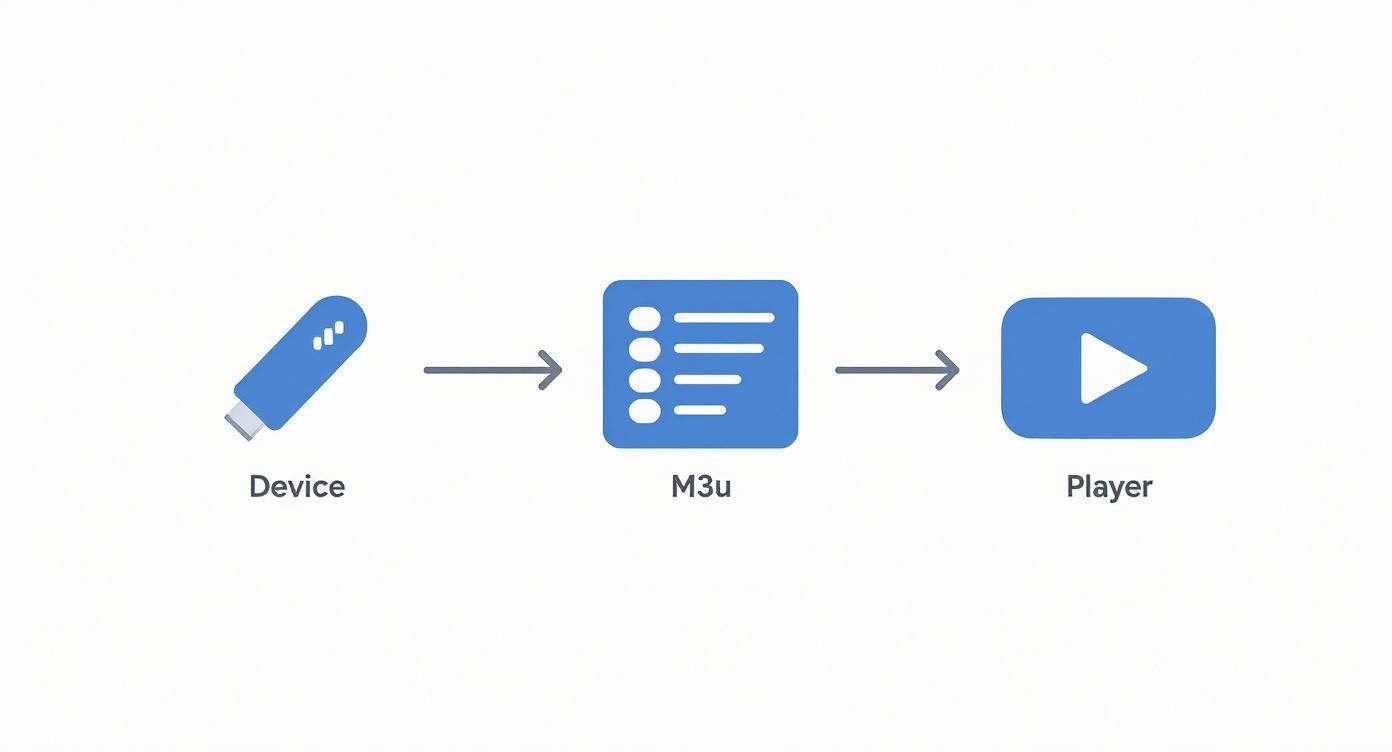
As you can see, that M3U playlist is the essential piece connecting your hardware to the actual content you want to stream.
If you want consistent, high-quality streaming without the headaches, going with a premium service is the only way to fly. Providers like IPTVNow offer stable connections, neatly organized channel lists, and actual customer support when you need it. Yes, there's a subscription fee, but the reliability and better experience are usually worth the small investment, especially when you compare it to a massive cable bill.
It all boils down to one simple word: dependability.
We like to think of it this way: a free playlist is like using a spotty public Wi-Fi network that could cut out at any second. A premium service is your own dedicated, high-speed home internet. For anything important, you're going to want the reliable option.
Once you have your M3U link or file, getting it into our browser-based player is incredibly simple. You don't have to install any apps or mess with complicated settings. We designed our player to get you from a link to live TV in just a few clicks. For a deeper dive, check out our guide on how to play M3U files.
Here's how easy it is:
That's it! A simple copy-and-paste is all it takes. You've just loaded your first playlist and are ready to dive into a whole new world of content.
So you've got your M3U playlist loaded. Great! But that's really just the first step. The real magic happens when you start digging into the settings and customizing the player to work for you.
This is how you take a massive, generic list of channels and turn it into a curated entertainment hub that feels like it was built just for you. An unorganized playlist with thousands of channels can be completely overwhelming, but a few quick tweaks can make finding what you want to watch effortless.
When you first load up a new playlist, the sheer number of channels can feel like a tidal wave of content. The key is to bring some order to the chaos. A great place to start is by creating custom groups that actually match how you watch TV.
For instance, you could bundle all the major sports networks into a "Game Day" group or gather every cartoon channel into a "Kids Zone." It's a simple organizational trick that lets you jump straight to what you're in the mood for, cutting out the endless scrolling.
Most quality playlists already have pre-defined categories, but you can (and should) refine them even further. Hiding categories you'll never touch is the fastest way to clean up your interface. If you have no interest in international news or shopping channels, just hide those groups from your main view. Easy.
For families, parental controls are an absolute must. You can usually set up a PIN to restrict access to certain channels or even entire categories. This gives you peace of mind, ensuring younger viewers only see content that's appropriate for them.
Think of your player settings as the remote control for your entire content library. Taking a few minutes to organize everything upfront will save you countless hours of scrolling later on, making your viewing experience far more enjoyable.
Beyond just organization, you can also fine-tune performance settings to get rid of that dreaded buffering. One of the most important settings to look at is the video decoder. Most players will give you hardware and software decoding options. Hardware decoding is almost always the better choice, as it uses your device's specialized components for much smoother playback.
Another powerful tool is adjusting the buffer size. If you know your internet connection can be a bit spotty, increasing the buffer size lets the player download more of the video ahead of time. This creates a cushion that stops the stream from pausing to load. For a deeper dive, check out our guide on the ideal internet speed for streaming.
If you find that lag is a constant issue even after these tweaks, the problem might actually be your home network. A weak Wi-Fi signal can cripple even the fastest internet plan. It might be worth investing in a modern router like the TP-Link WiFi 6 Router or a simple Wi-Fi extender from Amazon. These can dramatically improve signal strength throughout your home, ensuring that perfect, buffer-free stream.
Once you've got your playlist loaded and running, the real fun begins. It's time to graduate from simply watching channels to truly mastering your IPTV player M3U setup like a seasoned pro. This is where you unlock the features that turn a basic stream into a full-blown entertainment hub.
First up, and arguably the most important, is integrating an Electronic Program Guide (EPG). An EPG is that classic grid-style TV schedule you're used to, showing what’s playing now and what’s on deck. For navigating potentially thousands of channels, it's an absolute game-changer. Most solid IPTV services, like a reliable option from IPTVNow, will give you an EPG URL right alongside your M3U link. Adding this to your player instantly elevates a simple channel list into a powerful, interactive guide.
As you get more comfortable with your setup, you'll probably want to start juggling multiple M3U playlists. This is a fantastic way to keep your content organized. For instance, you could have one list dedicated to live sports, another for international movies, and a separate one just for the kids. A good IPTV player will let you swap between these lists without breaking a sweat.
This is where having a dedicated streaming device really shows its value. To handle multiple hefty playlists, load all that EPG data, and maybe even record shows without lag, you need some horsepower. A high-performance device is key here. The NVIDIA SHIELD TV Pro is a beast and an excellent choice, providing more than enough power to manage these advanced functions smoothly.
Many of today's IPTV player apps are built for these more demanding features. In fact, apps that support M3U playlists have become must-have tools for streamers, often including handy features like Chromecast support. You'll see players like IPTV M3U - Playlist M3U Player and IPTV Player - IPTV m3u climbing the popularity charts in the Video Players & Editors category on Android. You can dig into these app trends and statistics on App Store Spy to see how big this space has become.
With tens of thousands of channels potentially at your fingertips, knowing how to search and filter isn't just a "pro tip"—it's a survival skill. Get friendly with your player’s search bar; it's the quickest way to jump straight to a specific channel or show.
Pro Tip: Don't just search—filter first! Most players let you narrow things down by channel group, language, or even quality (like HD or 4K). Applying a "Sports" filter before you search for a specific game is way faster than digging through the entire playlist.
Also, don't sleep on the "favorites" feature. As you stumble upon channels you know you'll watch again, tag them as favorites. This builds a custom, lean-and-mean list of your go-to content, saving you from having to search for them every single time.
If you're looking for an app with these kinds of smart features, you might want to check out our guide on the best IPTV player options. Learning to use these simple tools is what makes a massive M3U playlist feel personal and perfectly manageable.
Even with the best setup, you're bound to hit a snag with your IPTV player M3U stream at some point. It happens. One minute you're settling in for a movie, the next you're staring at a frozen screen. It’s frustrating, but don't sweat it—most of these issues are super common and usually have a simple fix.
Think of this as your personal cheat sheet for sorting out the usual streaming hiccups. We’ll walk through the likely culprits and give you clear, actionable steps to get your channels back online fast. The truth is, most problems come down to just a handful of things, like a bad link or a simple network glitch.
IPTV is huge, and it's only getting bigger. The market is projected to skyrocket to $276.38 billion by 2032, with a massive 16.8% annual growth rate. That just means millions of people are running into—and fixing—the same problems you are. You can get more details on the IPTV market's future on fortunebusinessinsights.com.
This is the big one. You paste your link, hit enter, and... nothing. Maybe you get a "playback error" or just a blank screen. Before you start pulling your hair out, let's check the obvious stuff first.
We always tell people to think of their M3U link like a key. If the key is cut wrong (a typo) or the lock has been changed (a server update), the door won't open. Always, always check the key first.
There’s nothing worse than a stream that stops to buffer every 30 seconds. This is almost always a network problem, either in your house or somewhere along the path to the server.
First things first, check your own internet speed. If your connection is sluggish or dropping out, the player can't download the video data fast enough to keep up. The oldest trick in the book often works: reboot your router. Seriously, it fixes more issues than you'd believe.
If you're streaming over Wi-Fi and the signal is weak, your stream will suffer. You might need to move your router, or you could grab a simple Wi-Fi Extender to give the signal a boost where you need it most.
Another quick fix is clearing your player's cache. Old data can build up and cause weird performance issues. If you're using our browser-based player, just clearing your browser's cache for our site can smooth things right out.
Feeling overwhelmed? Don't be. Most issues have a simple cause and a simple fix. We've put together this quick-reference table to help you instantly diagnose the problem and know what to try first.
| Symptom | Likely Cause | First Step to Fix |
|---|---|---|
| Playlist Won't Load | Incorrect M3U URL or provider issue. | Double-check and re-paste your M3U link. |
| Constant Buffering | Weak or unstable internet connection. | Restart your router and check your Wi-Fi signal. |
| Missing EPG / Guide | Incorrect EPG link or outdated data. | Verify the EPG URL and refresh the guide in your player. |
| Audio Out of Sync | Video decoder or player glitch. | Restart the stream and try switching video decoders. |
Just find your symptom in the first column, and you'll have a good idea of where the problem lies and your first move to get it sorted. Happy streaming
Alright, we've walked through a lot, but you might still have a few things rattling around in your head about getting your IPTV player M3U up and running. Let's tackle some of the most common questions we get asked all the time.
This is the big one, and the answer is simple: it all comes down to where you get your M3U playlist.
The player itself—like our free browser-based tool—is 100% legal. Think of it like a DVD player; it's just a piece of software designed to play video content. Nothing illegal about that.
The legal gray area appears with the content you're playing. If your M3U playlist comes from a legitimate, official provider who has the rights to broadcast those channels, you're good to go. The problem starts when you use playlists from shady, unauthorized sources to stream copyrighted shows and movies.
Bottom line: Always, always make sure your provider is legit. It's the only way to stay on the right side of the law.
This is a super common headache, especially if you’re using one of those free M3U playlists floating around the internet. Free lists are a bit like a house of cards—they’re not built to last. The links can change, get updated, or disappear completely without a single word of warning.
Now, if you're with a premium service like IPTVNow, a dead link usually means one of two things: either your subscription ran out, or the provider sent out a new URL for security. Your first move should always be to get in touch with your provider and ask for a fresh link.
A free M3U link is like a temporary guest pass. It's great for a quick look around, but you can't rely on it for permanent access. For a stable, long-term setup, a verified premium service is the only way to fly.
That’s entirely up to your IPTV provider. The vast majority of standard plans are for one connection at a time. If you try to stream on your living room TV and a tablet simultaneously with a single-connection plan, you're asking for trouble. It's a quick way to get your IP address blocked, sometimes for good.
If you need to watch in multiple rooms at once, you’ll want to find a provider that specifically offers multi-connection plans. Just be aware, you might need a more powerful streaming device, like the Amazon Fire TV Stick 4K Max, to keep multiple high-quality streams running smoothly without any buffering.
Great question. Both an M3U URL and an M3U file do the same basic job: they feed your channel list to your player. The main difference is all about how they get updated.
.m3u) that you download and then upload to your player. If you want any updates, you have to go back to your provider, download a new file, and upload it all over again.Ready to jump in and start streaming without any downloads or installations? Give the Free IPTV Player a spin today! Just grab your M3U link, pop it into our player, and you're good to go. Get started now at https://freeiptvplayer.net.