To play a video in VLC using a URL, open VLC, go to Media > Open Network Stream, paste your video URL, and click Play. That's it — three clicks and you're streaming any video directly through VLC's powerful media engine.
I've been using VLC for network streaming since 2018, and the 2026 version remains the gold standard for playing online videos. Unlike browser players that bog down with ads and limited controls, VLC gives you complete playback control with superior codec support and customizable streaming options.
Whether you're accessing YouTube videos, free IPTV services, or embedded website content, VLC handles virtually any network stream format. The process works identically across Windows, Mac, and mobile devices — making it your universal solution for URL-based video playback in 2026.
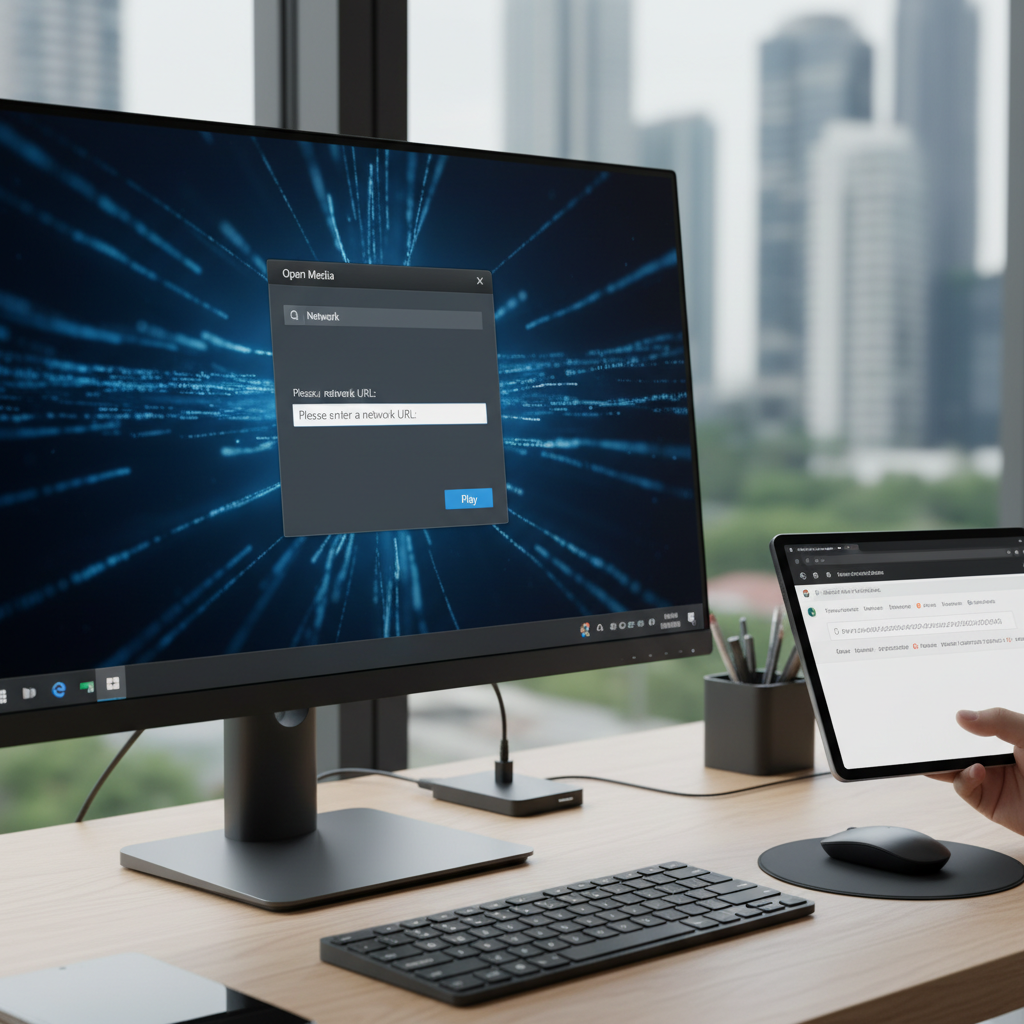
Here's the exact process I use daily to stream any video URL through VLC. This method works on both Windows and macOS with the latest 2026 VLC builds.
Download VLC 3.0.21 or newer from videolan.org — the 2026 releases include enhanced network protocol support and improved streaming stability for modern video formats.
Windows users: Click "Media" in the top menu, then select "Open Network Stream" (or press Ctrl+N). Mac users: Go to "File" > "Open Network" or use Command+N. You'll see a dialog box with a "Network" tab already selected.
Copy your video URL and paste it into the "Please enter a network URL" field. VLC accepts HTTP, HTTPS, RTSP, MMS, and dozens of other protocols automatically. Pro tip: For YouTube videos, you can paste the regular youtube.com URL — VLC extracts the direct stream link internally.
The interface shows a dropdown for "Protocol" but you rarely need to change this. VLC detects the correct protocol from your URL format.
Click the "Play" button and VLC begins buffering your stream. Most videos start playing within 2-5 seconds depending on your connection speed and the server's response time.
Different video sources require slightly different approaches. I've tested these methods extensively with the 2026 VLC builds to ensure compatibility.
YouTube integration in VLC works seamlessly — just paste any YouTube URL directly into the network stream dialog. VLC automatically extracts the video stream without requiring browser plugins or third-party tools.
However, YouTube's frequent algorithm changes mean some videos may fail to load. When this happens, try refreshing VLC's YouTube parsing by restarting the application. Age-restricted content typically won't play due to authentication requirements.
M3U8 streams are VLC's specialty — these HTTP Live Streaming (HLS) playlists work flawlessly with the network stream feature. Simply paste your M3U8 URL and VLC handles the segmented video chunks automatically.
For IPTV streams without subscriptions, M3U playlist files contain multiple channel URLs. VLC loads the entire playlist, letting you navigate between channels using the "Playlist" view (Ctrl+L on Windows, Command+L on Mac).
Tip: If your M3U stream buffers frequently, increase VLC's network caching to 3000ms in Tools > Preferences > Input/Codecs > Network Caching.
Playing embedded videos requires extracting the direct stream URL — something most users don't realize is possible. I use browser developer tools to find these hidden URLs.
Chrome/Firefox method: Right-click the video, select "Inspect Element," switch to the "Network" tab, and refresh the page. Look for entries ending in .mp4, .m3u8, or similar video formats. Copy that URL into VLC.
Many news sites and educational platforms use this approach. However, DRM-protected content from Netflix, Hulu, or similar services won't work — these require authenticated browser sessions that VLC cannot replicate.
For simpler embedded videos (like those on news sites or blogs), right-clicking and selecting "Copy video address" often reveals a direct URL that VLC can play immediately.
Beyond basic playback, VLC offers powerful customization options that dramatically improve your streaming experience. These features separate VLC from basic media players.
Default caching often causes stuttering with slower connections. Navigate to Tools > Preferences > Input/Codecs and increase "Network Caching" to 3000-5000ms for smoother playback. Higher values mean longer initial buffering but fewer interruptions.
For live streams, keep caching under 2000ms to minimize delay. I use 1500ms for IPTV channels to maintain near real-time viewing.
VLC supports HTTP and SOCKS proxies for bypassing network restrictions. Go to Tools > Preferences > Input/Codecs > Access Modules > HTTP(S) and enter your proxy details.
This feature helps when streaming geo-blocked content or accessing videos through corporate firewalls. Configure your proxy settings once and VLC applies them to all network streams automatically.
VLC can record any network stream directly to your hard drive. In the "Open Network Stream" dialog, click the dropdown arrow next to "Play" and select "Stream." Choose "File" as destination and pick your output format.
I regularly use this for capturing live streams or saving videos from sites that don't offer download options. Recording quality matches the original stream — no re-encoding losses.
Even VLC encounters streaming hiccups. Here are the solutions I've developed for the most frequent 2026 network streaming problems.
This error typically indicates an invalid URL or server timeout. First, verify the URL works in a browser. If it does, try increasing network timeout in VLC's advanced preferences (Tools > Preferences > Show All > Input/Codecs > Access Modules > HTTP(S)).
Quick fix: Change "HTTP User Agent" to match your browser's user agent string — some servers block VLC's default identifier.
Constant buffering usually stems from insufficient caching or bandwidth limitations. Increase network caching to 5000ms and lower video quality if the stream offers multiple resolutions.
For persistent issues, enable "Skip frames" in Video settings to maintain smooth playback during bandwidth dips. This sacrifices some visual quality but prevents complete freezing.
Network streams sometimes develop sync issues during playback. Press J or K during playback to adjust audio delay in real-time (50ms increments). Most sync problems require 100-300ms adjustment.
For permanent fixes, set default audio delay in Tools > Preferences > Audio > Audio desynchronization compensation.
VLC cannot bypass DRM encryption from major streaming services — this is intentional and legal. However, geo-restrictions on public streams often yield to proxy configuration or VPN usage.
Remember: Always respect content creators' rights and terms of service when accessing restricted content.
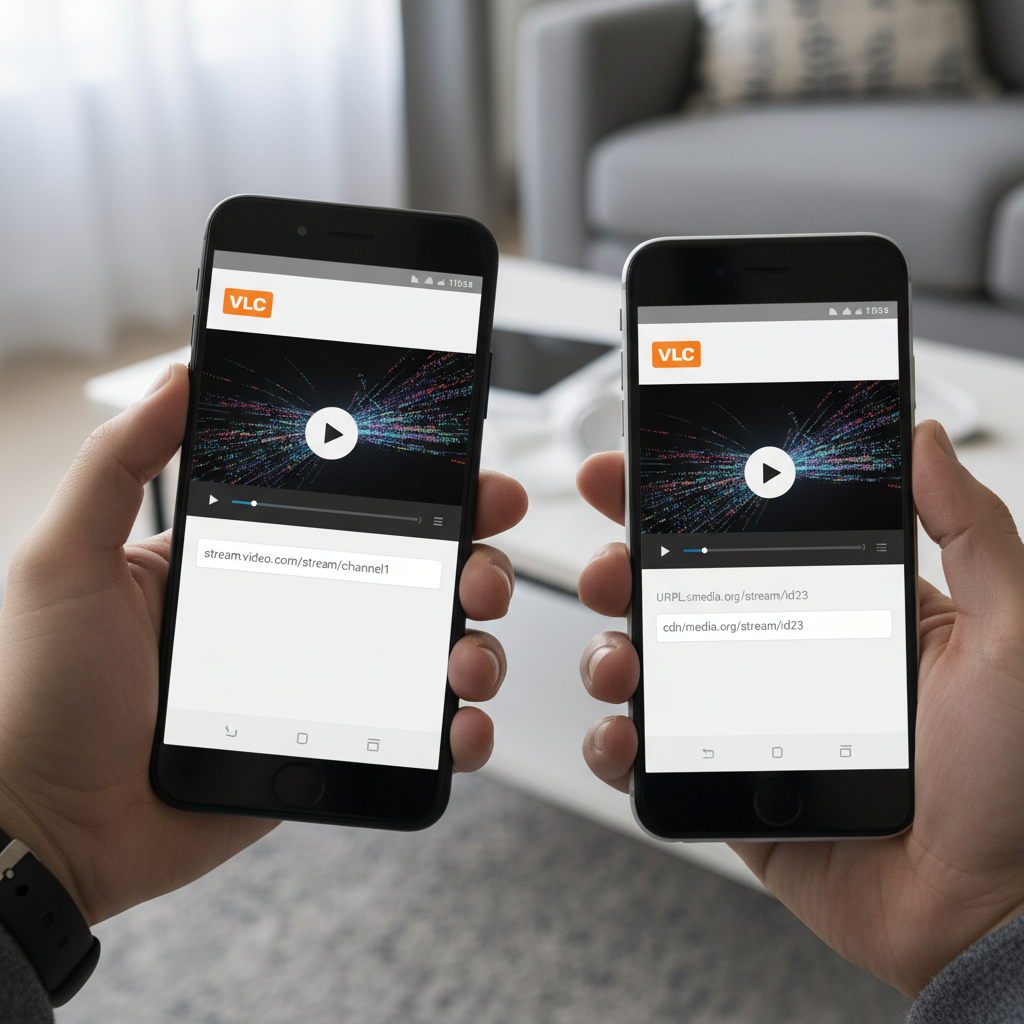
Mobile VLC apps mirror desktop functionality with touch-optimized interfaces. The core network streaming process remains identical across platforms.
Open VLC for Android and tap the three-line menu icon. Select "Stream" from the side menu, then tap the "Network Stream" tab. Paste your URL in the text field and tap the play button.
Android advantage: VLC integrates with Android's sharing system, so you can "Share" video URLs from other apps directly to VLC for immediate playback. This streamlines the process significantly compared to copy-paste methods.
For IPTV setup, Android VLC handles M3U playlists exceptionally well with gesture-based channel switching.
Launch VLC on iOS and tap "Network" in the bottom navigation bar. Enter your video URL in the "Network URL" field and tap "Open Network Stream." iOS VLC supports the same protocols as desktop versions.
iOS limitation: Apple's sandboxing prevents some advanced features like proxy configuration. However, basic network streaming works flawlessly with standard HTTP/HTTPS URLs.
Use iOS's "Shortcuts" app to create one-tap VLC streaming for frequently accessed URLs — a huge time-saver for regular channel streaming.
After testing dozens of media players, VLC consistently outperforms alternatives for network streaming. Here's why I recommend it universally.
VLC plays virtually everything — from obscure video codecs to experimental streaming protocols. Unlike browser players limited by web standards, VLC leverages native codec libraries for superior compatibility and performance.
No ads, no autoplay interference, no browser crashes affecting your video. VLC runs independently with dedicated system resources, ensuring stable playback even when browsing resource-intensive websites simultaneously.
VLC's playlist system organizes your network streams alongside local media files. Create custom playlists mixing YouTube videos, IPTV channels, and local content for seamless viewing experiences.
VLC remains the ultimate solution for playing any video URL with unmatched format support and customization options. The 2026 builds offer enhanced stability and broader protocol compatibility than ever before.
Start with the basic Media > Open Network Stream workflow, then explore advanced features like caching optimization and stream recording. Once you experience VLC's power for network streaming, browser-based players feel primitive by comparison.
Master these techniques and you'll handle any streaming scenario with confidence — from simple YouTube videos to complex IPTV configurations.
To open a video from a URL in VLC: Launch VLC, click Media > Open Network Stream, paste your video URL, and click Play. This three-step process works with virtually any video format or streaming protocol.
Q: How do I open a video from a URL in VLC?
Open VLC Media Player, navigate to Media > Open Network Stream (Ctrl+N), paste your video URL into the network field, and click Play. VLC automatically detects the protocol and begins streaming within seconds.
Q: How to play website video on VLC?
Most embedded videos require extracting the direct stream URL using browser developer tools. Right-click the video, select "Inspect Element," check the Network tab for video file URLs (.mp4, .m3u8), then copy that URL into VLC's network stream dialog. Note that DRM-protected content won't work.
Q: How to stream VLC over LAN?
This involves streaming FROM VLC TO other devices, not playing URLs IN VLC. Go to Media > Stream, select your media file, choose "Stream" instead of "Play," configure HTTP or RTSP output, and set your local network IP. Other devices can then access the stream using your computer's IP address.
Q: How to open m3u URL in VLC?
M3U URLs open identically to other network streams: Media > Open Network Stream, paste the M3U URL, and click Play. VLC loads the playlist automatically, allowing channel navigation through the Playlist view (Ctrl+L). M3U8 streams work the same way with enhanced compatibility.