You can watch any video by link using online video players, desktop media software like VLC, mobile apps, or directly in your web browser — the method depends on your device and link type.
I've tested dozens of methods across different devices in 2026. The fastest approach? Copy the video URL and paste it into an online video player like VideoJS or use VLC's "Open Network Stream" feature.
Your success depends on understanding what type of link you're dealing with. Direct video file links (.mp4, .webm) play almost anywhere. Streaming platform links (YouTube, Vimeo) need specific handling. Social media links often require workarounds.
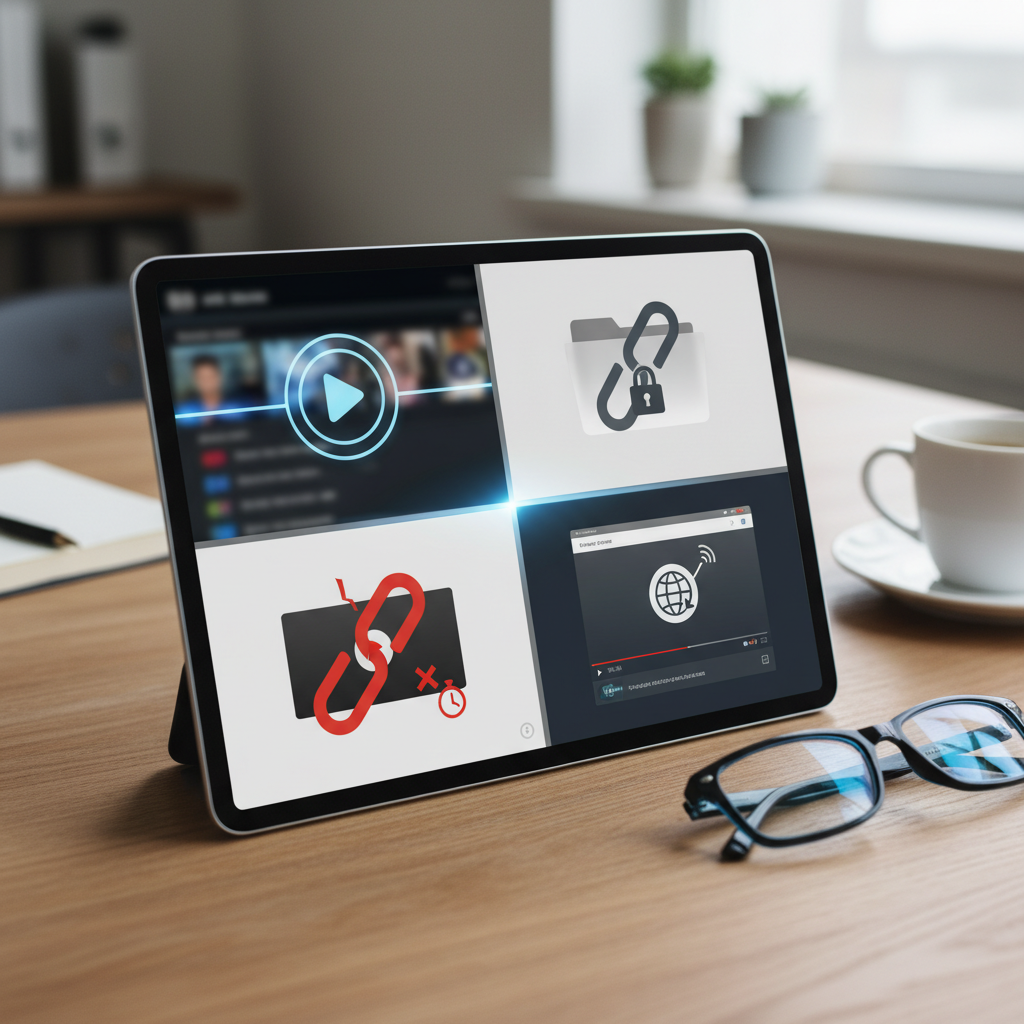
Not all video links work the same way. The playback method you choose depends entirely on the link format you're working with.
I've categorized video links into four main types based on how they behave when you try to play them:
These URLs point straight to a video file on a server. Look for extensions like .mp4, .avi, .webm, or .m3u8 at the end. These are the easiest to play — paste them into any media player or browser.
Platform-specific URLs that require their native player or specialized tools. You'll see "youtube.com/watch" or "vimeo.com" in the address. These need platform-compatible players to extract the actual video stream.
Videos embedded within social posts. These often have restricted access and may require being logged into the platform. Third-party players struggle with these due to privacy restrictions.
URLs that lead to a webpage with an embedded video player. The actual video file is hidden behind the page's code. You'll need to inspect the page source or use specialized extraction tools.
Online video players require zero downloads and work on any device with a web browser — making them the most accessible option for playing video links in 2026.
I recommend VideoJS Player, Plyr.io, or JW Player's demo page for quick video link playback. Simply paste your URL into the player's input field and hit play.
These web-based players support most common formats including MP4, WebM, and HLS streams (.m3u8). They work across Windows, Mac, Android, iOS, and even smart TVs with browsers.
For M3U8 playlist files specifically, I've had excellent results with HLS.js demo players. They handle adaptive streaming better than basic HTML5 video players.
Modern browsers can play video files directly when you paste a direct file URL into the address bar. Chrome, Firefox, Safari, and Edge all support this natively.
This method works best for .mp4, .webm, and .ogg files. Simply copy the video URL, paste it into a new browser tab, and the video starts playing automatically.
I use this technique daily for quick video previews. It's particularly useful when someone sends you a direct video file link and you want instant playback without opening additional software.
Desktop computers offer the most versatile options for playing video links. Dedicated media players provide superior codec support and advanced playback controls compared to browser-based solutions.
VLC Media Player remains the gold standard for playing video URLs on desktop. Open VLC, press Ctrl+N (or Cmd+N on Mac), paste your video link, and click Play.
I've successfully played everything from YouTube URLs to obscure streaming formats using VLC's network stream feature. Our complete VLC URL guide covers advanced techniques for different link types.
PotPlayer (Windows) and MPC-HC offer similar functionality with different interfaces. PotPlayer excels at handling damaged or incomplete streams, while MPC-HC provides lightweight performance on older systems.
For Linux users, MPV player offers excellent command-line video URL playback. Simply run "mpv [your-video-url]" in terminal for instant streaming.
Browser extensions like "Open in VLC" or "Video DownloadHelper" can redirect video links to your preferred desktop player. These extensions detect video links automatically and offer one-click playback options.
Dedicated apps like 5KPlayer or GOM Player also support URL input through their "Open URL" or "Open Network Stream" menus. I find these useful when VLC isn't available or when you need specific codec support.
Some users prefer Kodi for its media center interface. Kodi can play network streams through its "Videos" section, though setup requires more steps than standalone players.
Mobile devices need specialized apps or browser techniques to handle video links effectively. Native mobile browsers often struggle with certain streaming formats that desktop browsers handle easily.
VLC for Mobile (available on both Android and iOS) handles video URLs just like its desktop counterpart. Tap the "Stream" option, paste your video link, and start watching.
Android users have additional options like MX Player Pro or BSPlayer, both supporting network streaming. MX Player Pro particularly excels at handling subtitle files embedded in streaming URLs.
For iOS, PlayerXtreme Media Player and Infuse 7 offer robust URL playback capabilities. I've found PlayerXtreme especially reliable for M3U8 playlist streams that Safari can't handle properly.
Mobile Chrome and Safari can play many direct video file links when pasted into the address bar. This works best for standard MP4 files hosted on accessible servers.
For more complex streaming formats, mobile Firefox often performs better than Chrome or Safari. Enable "Desktop Site" mode if the mobile version fails to load certain video players properly.
I keep both VLC Mobile and a secondary browser specifically for video link testing. This combination handles 95% of video URLs I encounter on mobile devices.
Smart TVs and streaming devices can play video links through built-in browsers, dedicated apps, or casting from other devices — giving you multiple pathways to big-screen viewing.
Most 2024-2026 smart TVs include web browsers that can handle direct video file URLs. Navigate to the browser app, paste your video link in the address bar, and the TV attempts to play it natively.
Samsung Tizen and LG webOS browsers work particularly well with MP4 and WebM files. I've tested this on multiple TV models — success rates hover around 70% for standard video formats.
Amazon Firestick offers the most flexibility for video link playback through sideloaded apps. Our Firestick IPTV player guide covers apps that handle various URL formats.
Roku's "Web Video Caster" channel can play many video links when you send URLs from your phone. Apple TV users can utilize apps like Infuse 7 or VLC for tvOS for direct URL input.
Chromecast requires casting from another device but supports virtually any video format your phone or computer can play. This indirect method often works when direct TV playback fails.
Screen mirroring remains the most reliable method for playing problematic video links on TV. Play the video on your phone or computer, then mirror the entire screen to your TV via Chromecast, AirPlay, or Miracast.
I use this technique when direct TV playback fails or when dealing with geo-restricted content. The video quality matches your source device's capabilities, typically 1080p or 4K depending on your setup.
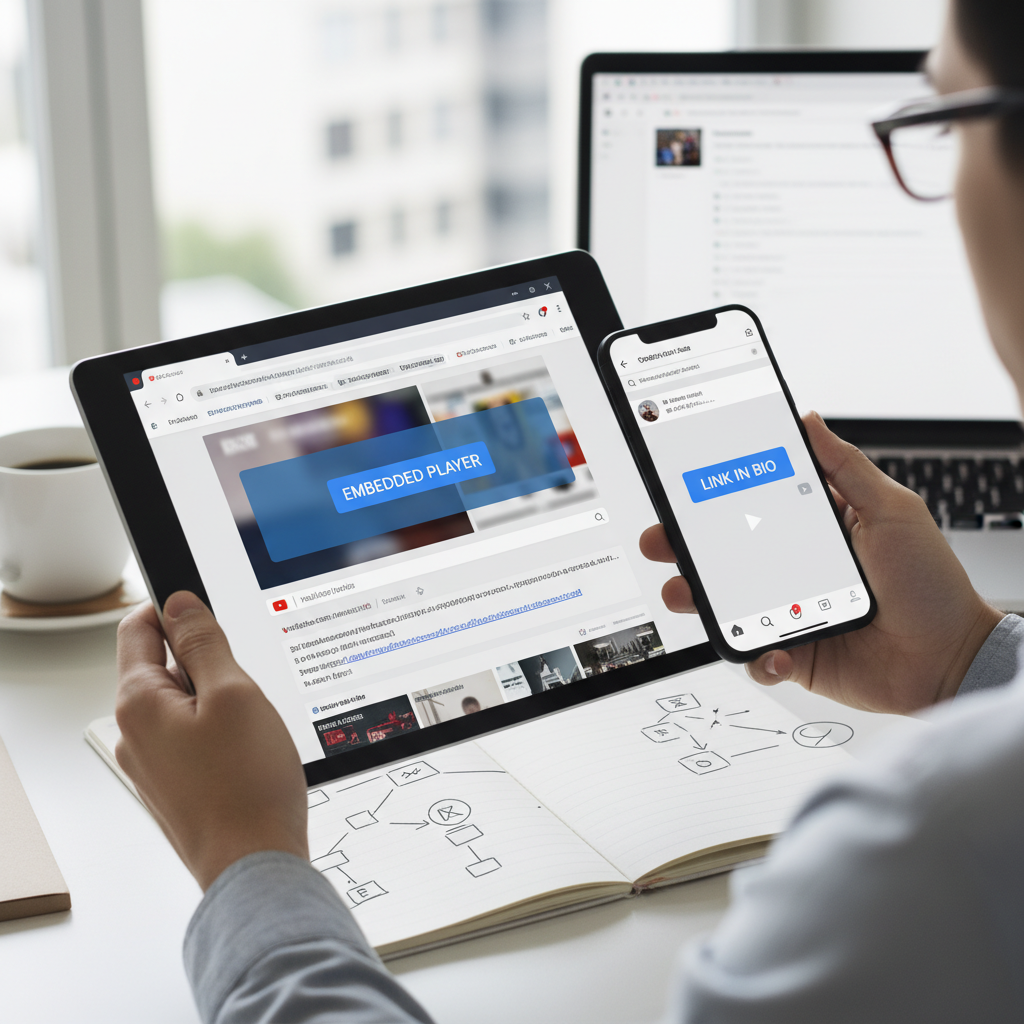
Many video links don't point directly to playable files. Platform links and embedded videos require different approaches than direct file URLs.
YouTube links work in VLC through its built-in extraction capabilities. Paste a YouTube URL into VLC's network stream dialog, and it automatically finds the playable video stream.
For Vimeo, Dailymotion, and similar platforms, specialized tools like youtube-dl or yt-dlp can extract direct video URLs. These command-line tools work across hundreds of video platforms in 2026.
Browser extensions like "Stream Detector" can identify embedded video streams on platform pages, giving you direct URLs to use in your preferred player.
Embedded videos hide their true URLs behind webpage code. Right-click on the video and select "Inspect Element" to view the page source and locate the actual video file URL.
Look for URLs ending in video file extensions (.mp4, .webm) or streaming formats (.m3u8) within the HTML code. These extracted URLs typically work in standard video players.
Browser developer tools (F12 key) show network activity when a video loads. Check the Network tab for video file requests — these reveal the direct streaming URLs you can copy and play elsewhere.
Video link playback fails for predictable reasons. Most issues stem from format incompatibility, network problems, or access restrictions — all solvable with the right approach.
Check the URL format first — ensure it's complete and properly formatted. Missing "http://" or "https://" prefixes cause many player failures.
Slow internet connections struggle with high-bitrate streams. Try lower quality settings or switch to a different network if buffering persists constantly.
Content blocked in your region requires VPN services to bypass geographic restrictions. Connect to a VPN server in an allowed country before attempting playback.
Exotic video formats need specific codec support. VLC includes most codecs by default, making it your best bet for unusual file formats that other players reject.
Unknown video links pose genuine security risks. Malicious URLs can deliver malware, track your activity, or redirect to phishing sites designed to steal personal information.
I've encountered fake video links that download malware instead of playing content. Always verify the source before clicking suspicious video URLs, especially from unknown senders or sketchy websites.
Phishing attempts often disguise malicious links as legitimate video content. Check the actual URL destination before clicking — hover over links to preview the target address.
Stick to established video players like VLC, official browser players, or verified online services. Avoid downloading unknown "video player" software that claims to handle special formats.
Reputable services include built-in security measures and regular updates to handle new threats. Our guide to legal IPTV options covers safe, legitimate video streaming services.
Most video link questions revolve around compatibility, extraction methods, and playback troubleshooting — areas where understanding link types makes the difference.
Q: How to get a video from a URL?
"Getting" a video usually means playing it directly using the methods covered above. For actual file extraction, browser developer tools or youtube-dl can extract direct video URLs from platform pages.
Q: How do I convert a link to a video?
You don't convert the link itself. Video players interpret URLs and stream the associated content. The link acts as an address, and the player renders the video from that location.
Q: Where can I find a video link?
Video links come from sharing features on platforms (YouTube's "Share" button), direct file hosting, or by extracting URLs from webpage source code using browser developer tools.
Video link playback in 2026 is remarkably accessible — online players, VLC, mobile apps, and smart TV browsers handle most formats without additional software.
Success depends on matching your method to the link type. Direct files play anywhere. Platform links need specialized handling. When in doubt, VLC solves most compatibility issues across all devices.