So, what does watching IPTV on an Android box actually mean? In a nutshell, it's just a way to use your internet to stream live TV, movies, and shows right to your television. It’s a super flexible and often cheaper way to get your content compared to old-school cable. All you need is a small media device—your Android box—and an IPTV player app, and you're ready to go. Think of the Android box as the middleman connecting your internet to your TV screen.
Pairing an IPTV service with a solid Android box is a total game-changer for home entertainment. You're no longer stuck with the high costs and limited channels that come with a cable subscription; instead, you get to call the shots on what you watch. The whole setup really boils down to two things: a good IPTV service that gives you an M3U playlist and a capable Android box that can handle the stream without breaking a sweat. For a great service option, we recommend our affiliate IPTV Now.
One of the best things about an Android box is its versatility, especially when compared to a standard, locked-down IPTV box. It runs on the Android OS—the same system your phone probably uses—which means you can hop onto the Google Play Store and download all sorts of apps, including our very own Free IPTV Player. This makes it the perfect hub for all your streaming.
Let’s be real: your viewing experience is only as good as the hardware running it. A beefy Android box with a decent processor and plenty of RAM is your ticket to smooth, buffer-free playback, which is a must for HD and 4K content. My advice? Invest in a quality device right from the start. It’ll save you a ton of frustration later on. If you're not sure where to begin, take a look at our guide on the best IPTV box for any budget.
https://freeiptvplayer.net/best-iptv-box/
These little boxes are becoming incredibly popular. The global market for them was projected to hit a massive $37,060 million by 2025. That’s a huge number, and it just goes to show how many people are ditching traditional TV for a better, more flexible streaming setup.
A quality Android box isn't just a gadget; it's the engine for your entire streaming setup. It decodes the video streams, runs the player app, and delivers a crisp picture to your TV, making it the most critical piece of hardware in your IPTV journey.
The player app is the absolute heart of your setup. It acts as the bridge between your IPTV service and your TV screen, and picking the right one makes all the difference. Think of it like a web browser, but for live TV channels. Just like a good browser makes surfing the web a pleasure, a quality player makes streaming effortless. The beauty of an Android TV box is its flexibility—you can choose from dozens of options on the Google Play Store, unlike those locked-down cable boxes.
When you're picking an IPTV player, you're essentially choosing one of the most critical Android-specific components for your entire streaming experience. The difference between a great app and a mediocre one often boils down to a few key features that can dramatically improve how you watch TV.
The one non-negotiable feature is M3U playlist support. This is the standard format used by pretty much every IPTV provider out there, so it's a must-have. Beyond that, look for an app with a clean, easy-to-navigate user interface. Trust me, a clunky, confusing menu will quickly become a major source of frustration every time you want to find a channel.
Another vital feature is EPG (Electronic Program Guide) compatibility. An EPG gives you that familiar, grid-style TV guide, showing you what's on now and what's coming up next. Without it, you're just blindly clicking through channels, which gets old fast. Luckily, many excellent free players offer all these features. For a detailed comparison, you can check out our guide on the https://freeiptvplayer.net/best-iptv-apps-for-android/.
This infographic breaks down the simple process of selecting and setting up your player.
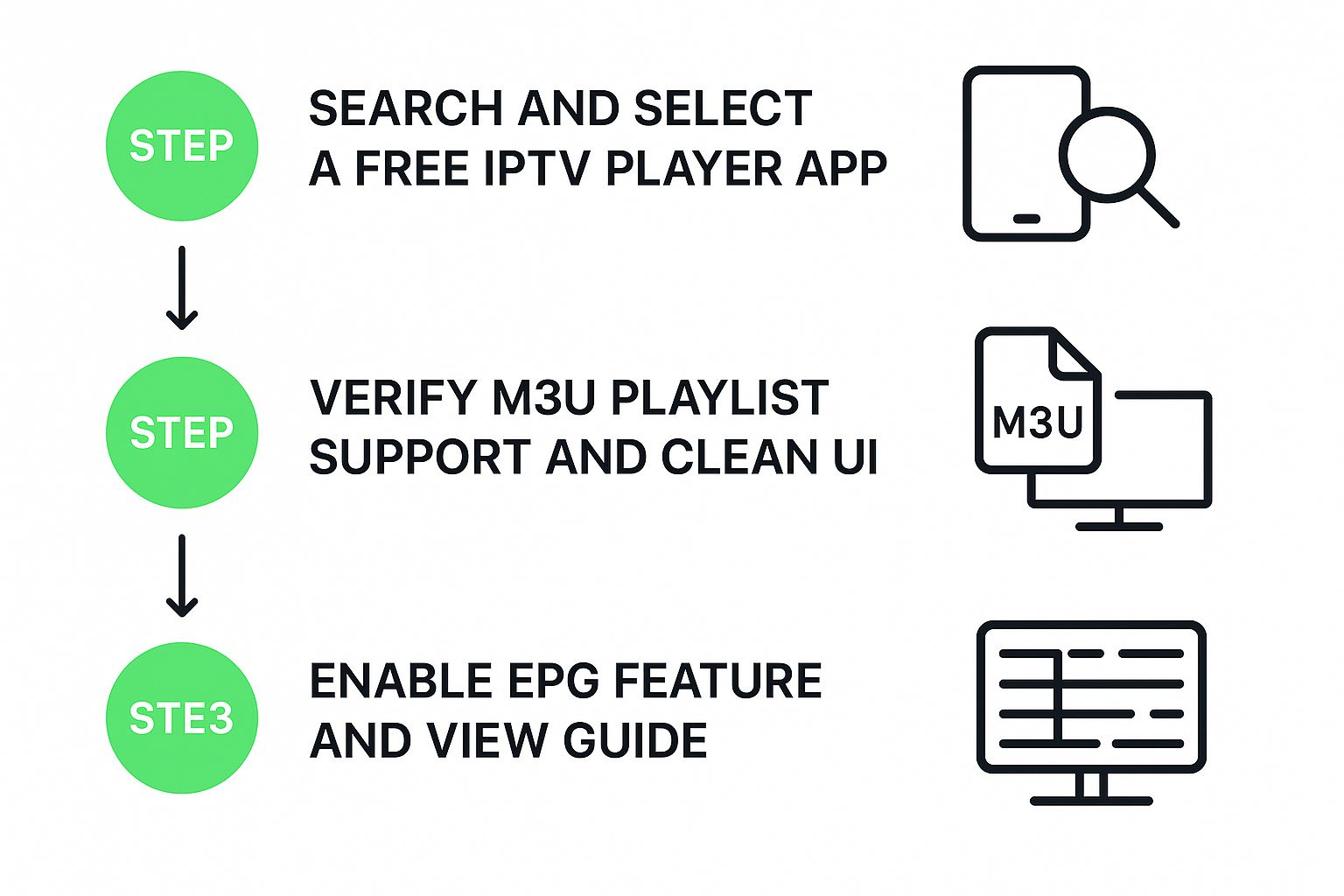
As you can see, the main goal is to verify those essential features like M3U support and EPG functionality. Getting these right from the start ensures a smooth viewing experience down the road.
Ultimately, you want an application that feels intuitive and doesn't get in the way of your content. A solid player, like our Free IPTV Player, can make using IPTV for your Android box an incredibly rewarding experience. Take a few minutes to explore the options and pick one that suits your style.
Alright, you've got the player app installed on your Android box. Now for the fun part: actually loading up your channels. This is all handled with an M3U playlist, which is just a fancy name for a file or a link that tells your player where to find all the live TV streams.
Think of it as the master key to unlock everything your IPTV provider offers.
When you sign up for a service, they’ll almost always give you this information in one of two ways. You'll either get a long URL (often called an M3U link) or they'll send you a downloadable .m3u file. Both work perfectly with Free IPTV Player; which one you use just comes down to what your provider sends you.
This is hands-down the most common and easiest method. Your IPTV service will usually email you this link right after you subscribe. All you really have to do is copy that link and pop it into the right spot in your IPTV player.
Here's the typical process:
I've always found the direct link method to be the best because it’s so low-maintenance. When your provider adds new channels or makes updates, they often just appear automatically in your player. No extra work on your end.
The other option is getting an M3U file to download. This is a small file you'll need to get onto your Android box. You can either download it directly using a web browser on the box itself or, my preferred method, just transfer it over with a simple USB flash drive.
Once the file is on your Android box, you'll open your player and find an option like "Add Playlist from File" or "Load Local Playlist." Then you just point it to wherever you saved the .m3u file.
This method works just as well, but it can be a bit of a pain if your channel list changes often, since you'd have to download and transfer a new file each time. If you're curious about what goes on behind the scenes, we've got a guide on https://freeiptvplayer.net/how-to-create-m-3-u-playlist/ that breaks it all down.
The demand for flexible streaming on devices like Android boxes has made the IPTV market explode. Back in 2024, the global IPTV market was valued at a massive $160.44 billion, and it's projected to more than double to $359.7 billion by 2029.
Alright, so you've got your channels loaded up. That's a great start! But let's be real, the true test of a good IPTV for Android box setup is smooth, uninterrupted streaming. Nobody wants to deal with that dreaded buffering wheel right in the middle of a big game or a movie climax.
Luckily, a few quick tweaks inside your IPTV player's settings can make a world of difference.
First up, let's talk about the buffer size. This is a small slice of memory your player uses to store the next few seconds of the stream. Bumping this up just a little gives your connection a cushion, helping to smooth over minor network stutters before they turn into a full-blown freeze.
Next, you'll want to find the video decoder setting. You'll typically see two options:
Player settings are great, but they can't perform miracles on a shaky internet connection. In my experience, a weak Wi-Fi signal is the number one enemy of a good IPTV stream.
For the most reliable, rock-solid performance, nothing beats an old-school Ethernet cable. Plugging your Android box directly into your router takes Wi-Fi interference and signal drops completely out of the equation.
If your box is missing an Ethernet port, don't sweat it. A simple USB Ethernet adapter is a cheap and incredibly effective fix. Pair that with a decent router, and you've got a setup that can handle high-definition streaming without breaking a sweat. For a deeper dive, check out our guide on how to optimize your internet connection.
The heart of any Android box is its chipset—the brain that combines the CPU and GPU to handle demanding video playback. The global market for these powerful chips hit $790 million in 2024 for a reason. Understanding what's under the hood can tell you a lot about your device's streaming capabilities.
Even with a perfectly dialed-in IPTV for Android box setup, you’re bound to hit a snag every now and then. It happens to everyone. But before you get frustrated, just know that most playback problems are surprisingly easy to sort out.
The most common headaches? That dreaded buffering wheel that never seems to go away, or channels that just flat-out refuse to load.
My first port of call is always the simplest thing: the internet connection. Run a quick speed test directly on your Android box to make sure you have a stable connection. If that checks out, the next thing to try is clearing the cache in your IPTV player app. You'd be amazed how often this simple trick fixes minor glitches by getting rid of old, potentially corrupted data.
If those first few steps don't do the trick, it's time to take a closer look at your M3U playlist. Go back and double-check the URL for any typos. Seriously, even one wrong character will prevent it from working.
If you’re using a paid service, it’s worth reaching out to them. Sometimes the problem is on their end, not yours. Using a reliable provider, like our affiliate IPTV Now, can definitely cut down on these kinds of issues.
Another classic problem is the audio falling out of sync with the video, which can be incredibly distracting. This is almost always related to the video decoder settings inside your player.
Try switching from hardware to software decoding (or the other way around) in your player’s settings. This forces the app to process the video stream in a different way and often snaps the audio right back into sync.
And finally, if your EPG (Electronic Program Guide) data is missing, treat it just like your M3U playlist. Carefully verify that the EPG source link you entered in your player is completely correct.
Thinking about diving into IPTV on your Android box but still have a few things you're wondering about? Perfect. That's why we're here. Let's tackle some of the most common questions people have before they get started.
This one comes up a lot, and it's a great question. The short answer is yes, using an IPTV player app on your Android Box is 100% legal.
The real question is about the source of your channels. The legality all comes down to the IPTV service you're paying for. To keep everything above board and respect copyright laws, you need to sign up with a provider that has the proper licenses to distribute the content they offer. For a reliable service we've had good experiences with, you might want to check out our affiliate, IPTV Now.
While you can technically stream without one, we strongly recommend using a VPN. Think of it as an essential tool for a better streaming experience. A good VPN unlocks geo-restricted content, stops your Internet Service Provider (ISP) from throttling (or slowing down) your connection, and adds a much-needed layer of privacy to everything you do online.
A lot of IPTV providers actually suggest using a VPN. Why? Because it helps prevent that annoying buffering that happens when your ISP decides to slow you down, giving you a much smoother and more private stream.
For a smooth, buffer-free stream in HD, you’ll want an internet connection of at least 20 Mbps.
Planning on watching in crisp 4K? You should really aim for 30 Mbps or more to keep that picture quality sharp and steady. If you find your Wi-Fi is a bit shaky, grabbing a simple USB Ethernet adapter can make a world of difference by giving your box a more stable, wired connection.
Ready to jump right in? Give Free IPTV Player a try today! There’s nothing to download or install. Just paste your M3U link and start watching live TV right from your browser. https://freeiptvplayer.net