Watching video by link means playing video content directly from a URL without downloading files to your device. You paste a link into a player or browser, and the video streams instantly.
Three primary methods dominate 2026's landscape. Online video players work entirely in your browser — no software needed. Dedicated media players like VLC offer advanced controls and format support. Browser playback handles direct video links by simply pasting URLs into your address bar.
The beauty lies in instant access. Whether you're dealing with MP4 files, M3U8 streams, or embedded content, these methods eliminate the wait time of downloads. I've found that choosing the right approach depends on your link type and viewing preferences.
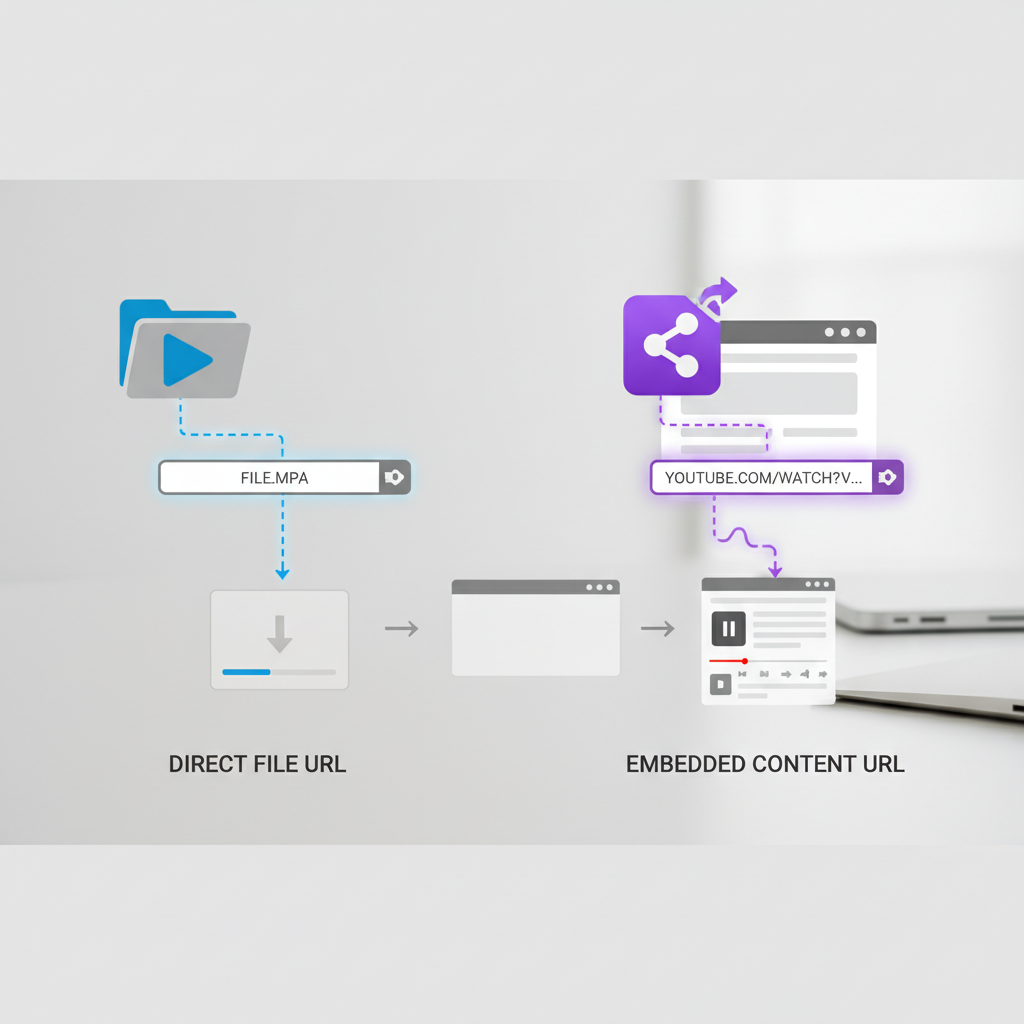
Not all video links work the same way. Direct video file links point straight to the actual video file (like .mp4, .webm, or .m3u8), while webpage URLs with embedded videos lead to pages containing video players.
This distinction matters because each type requires different playback approaches. Direct links work universally across players and browsers, but embedded content often needs specific handling.
A direct video file link ends with a video file extension and points to the raw video data. Examples include https://example.com/video.mp4 or https://stream.example.com/playlist.m3u8. These links work in any compatible player — just paste and play.
Embedded video URLs lead to web pages hosting video content. Think YouTube links (https://youtube.com/watch?v=...) or news articles with video players. The actual video file remains hidden behind the webpage's player interface, requiring browser-based viewing or specialized extraction tools.
Yes, you can view video files without downloading them. Online video players stream content directly from URLs through your web browser, eliminating storage concerns and providing instant playback across any device with internet access.
Web-based video players represent the most accessible solution for URL playback in 2026. These tools require zero installation and work on smartphones, tablets, and computers equally well.
The major advantage? Universal compatibility. Online players handle popular formats like MP4, WebM, and even streaming protocols like M3U8 without codec worries.
VideoJS-based players dominate the free online space, offering clean interfaces and reliable streaming. Popular options include Plyr.io's demo player and various GitHub-hosted solutions.
Many IPTV player platforms also provide web-based URL playback features. These specialized tools excel with streaming protocols and live content.
Browser extensions like "Video Player for URLs" add playback capabilities directly to your browsing experience, though I recommend sticking with established players for security.
Navigate to your chosen online player website. Paste your video URL into the designated input field — most players clearly label this area.
Click "Play" or "Load" and wait 2-5 seconds for buffering. The video begins streaming without any file downloads to your device storage.
Dedicated media players provide superior control over URL playback compared to browser-based solutions. These applications offer advanced features like subtitle management, audio track selection, and playback speed control.
The key advantage lies in format support. While online players might struggle with unusual codecs or streaming protocols, desktop players typically handle everything you throw at them.
VLC remains the gold standard for URL video playback in 2026. Open VLC, press Ctrl+N (or Cmd+N on Mac), paste your video link, and hit play.
VLC excels with streaming protocols like RTMP, M3U8, and even YouTube URLs. I've successfully played everything from security camera feeds to live sports streams using VLC's URL playback feature.
The player automatically detects optimal settings for your link type, though manual codec adjustments remain available for problematic streams.
PotPlayer offers Windows users extensive customization options and superior subtitle handling. MPV provides lightweight, command-line friendly playback for technical users.
Mobile options include MX Player (Android) and Infuse (iOS), both supporting network streaming and URL input through their interfaces.
Your web browser handles video links automatically — no additional software required. This method works best for direct video file links ending in common extensions like .mp4, .webm, or .mov.
Browser playback offers the simplest possible approach. Copy your video URL, paste it into your address bar, press Enter, and watch.
All major browsers in 2026 support native video playback. Paste your direct video link into the address bar and the browser's built-in player loads automatically.
Right-click the video for additional controls like download options, playback speed adjustment, and picture-in-picture mode. Chrome and Edge offer particularly smooth streaming performance.
Embedded videos play through their host website's player interface. Simply visit the webpage URL and the video loads within the site's design.
Most embedded players include standard controls: play/pause, volume, fullscreen, and progress scrubbing. Quality options depend on the hosting platform's capabilities.
You can watch video links on TV through casting, built-in smart TV browsers, or dedicated streaming device apps. The method depends on your hardware setup and the type of video link you're working with.
Smart TVs and streaming devices have evolved significantly in 2026, offering multiple pathways for URL-based video playback. The key is matching your approach to your available hardware.
Casting provides the most reliable TV playback method for video links. Load your video in a browser or compatible app on your phone or computer, then cast to your TV.
Chromecast works seamlessly with Chrome browser tabs containing video content. AirPlay handles iOS device mirroring to Apple TV. Windows PCs support Miracast casting to compatible smart TVs and dongles.
I've found casting particularly effective for embedded videos that won't work with direct TV apps. The source device handles the heavy lifting while your TV displays the content.
Most 2026 smart TVs include web browsers capable of playing video links directly. Navigate to your video URL using the TV's browser and playback begins automatically.
Samsung Tizen, LG webOS, and Android TV platforms all support this functionality. Performance varies by TV model — newer processors handle streaming more smoothly.
Some smart TV app stores include dedicated URL video players designed specifically for big-screen viewing.
Amazon Fire TV supports several URL player apps including VLC and specialized IPTV applications. Sideload these apps if they're not available in the official store.
Android TV boxes offer the most flexibility, running standard Android apps that accept video URLs. Roku's selection remains more limited but includes some network streaming options.
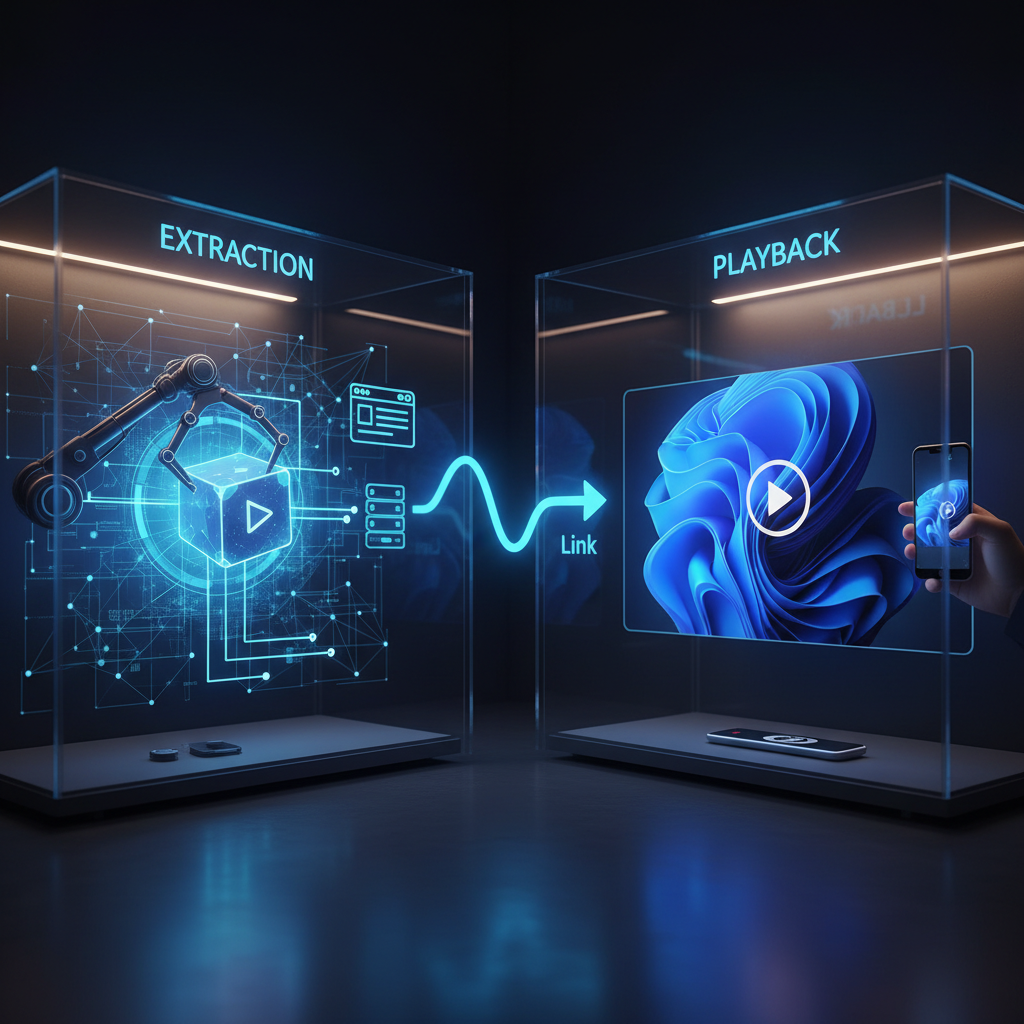
"Getting a video from a URL" typically means downloading the video file for offline viewing, which differs from simply streaming it online. Playback streams content temporarily while extraction saves permanent copies to your device.
The distinction matters for storage, offline access, and legal considerations. Streaming respects content creators' intended distribution methods, while extraction raises copyright questions.
Direct video file URLs ending in .mp4, .webm, or .mov can often be downloaded by right-clicking and selecting "Save video as" in most browsers.
Embedded videos require URL extraction tools or browser extensions to reveal the underlying video file addresses. Popular options include youtube-dl, yt-dlp, and various online download services.
Network inspection tools (F12 developer console) can reveal direct video URLs loaded by web pages, though this requires technical knowledge.
Legitimate extraction scenarios include archiving your own content, offline viewing during travel, or educational research under fair use provisions.
Always respect copyright laws and terms of service. Many platforms explicitly prohibit downloading content, and unauthorized extraction can violate intellectual property rights. When in doubt, stick to streaming playback.
Video link problems typically fall into four categories: broken URLs, format incompatibilities, network issues, and geographic restrictions. Each requires different troubleshooting approaches.
I've encountered these issues countless times while testing various playback methods. Here's how to diagnose and fix the most common problems.
Expired or moved content causes most "link not working" errors. Video hosts frequently reorganize files or remove content, breaking previously functional URLs.
Try accessing the link in different browsers or players. Sometimes the issue is player-specific rather than a fundamental link problem. Check if the hosting website itself is accessible.
Format incompatibility strikes when your player lacks necessary codecs for the video file. VLC Media Player resolves 90% of these issues with its comprehensive codec library.
For persistent problems, try converting the video using online tools or downloading codec packs for your preferred player.
Network bandwidth limitations cause most buffering issues. Test your internet speed and try lower quality streams if available.
Close bandwidth-heavy applications running in the background. Switch to wired connections when possible — Wi-Fi can introduce additional latency and packet loss.
Some players offer buffer size adjustments in their settings. Increasing buffer time reduces interruptions at the cost of longer initial loading.
Geographic content blocking affects many streaming URLs. VPN services can bypass these restrictions by routing your connection through different countries.
Choose VPN servers in regions where the content is available. Popular options include ExpressVPN, NordVPN, and Surfshark, though free alternatives exist with limited functionality.
Unknown video links pose significant security risks in 2026's threat landscape. Malicious actors increasingly use video content as attack vectors, making cautious link handling essential.
Never click suspicious links from untrusted sources, especially those promising exclusive or shocking content. Legitimate video sharing uses established platforms with built-in security measures.
Malicious video links can trigger drive-by downloads, install malware, or redirect to phishing sites designed to steal credentials. Fake video players often prompt users to download "required codecs" that contain viruses.
Suspicious signs include unusual domain names, excessive pop-ups, or requests for personal information before video playback. Trust your instincts — if something feels wrong, it probably is.
Use reputable players and platforms for video link playback. Stick to established options like VLC, official browser players, or well-known online video players.
Keep your browser and media players updated with latest security patches. Enable ad blockers to reduce exposure to malicious advertisements on video hosting sites.
Advanced users can leverage video link playback for specialized applications beyond simple entertainment viewing. These techniques unlock additional functionality for specific use cases.
Professional applications include monitoring live streams, accessing IPTV content, and creating educational video resources with enhanced privacy controls.
IPTV streaming relies heavily on URL-based playback using M3U and M3U8 playlist formats. These files contain lists of streaming URLs that players process sequentially.
Specialized IPTV player applications handle these formats better than general-purpose video players. Popular options include TiviMate, IPTV Smarters, and Perfect Player.
Legal considerations apply — ensure you have proper authorization for any IPTV content you access through URL players.
SafeShare services generate clean, distraction-free versions of YouTube and Vimeo videos by removing comments, related videos, and advertisements.
These tools prove valuable for educational settings or professional presentations where you want focus solely on video content. Simply paste your original video URL into SafeShare generators for cleaned versions.
Choose your playback method based on link type and viewing context. Online players work universally without installation, dedicated media players offer advanced control, and browsers handle direct links effortlessly.
Understanding the difference between direct video files and embedded content URLs determines your optimal approach. Direct links work everywhere, while embedded content requires browser-based viewing or specialized extraction.
Security remains paramount when handling unknown video links. Stick to reputable players and platforms, keep software updated, and trust your instincts about suspicious content.
For the best 2026 video link experience, bookmark reliable online players, keep VLC Media Player installed for problematic formats, and consider your privacy needs when accessing content from unfamiliar sources.
How do I convert a link to a video? A link doesn't need "conversion" — it's already the address to video content. If you mean downloading the actual video file from a URL, this depends on whether it's a direct file link (.mp4, .webm) or embedded content requiring extraction tools, with copyright considerations applying to most content.